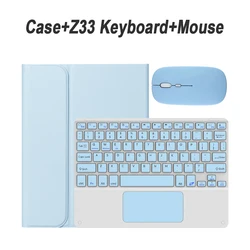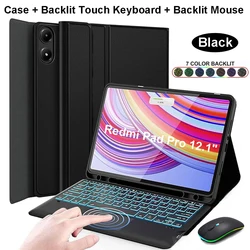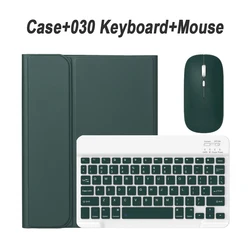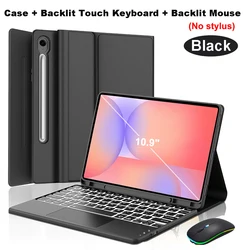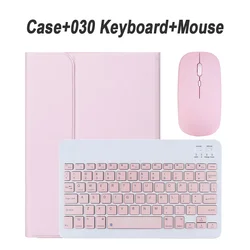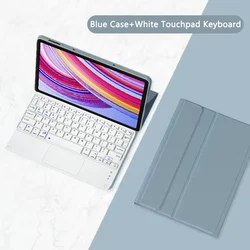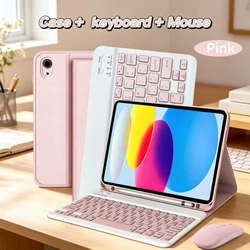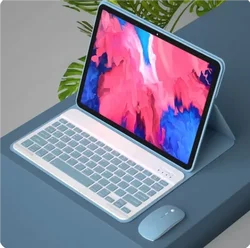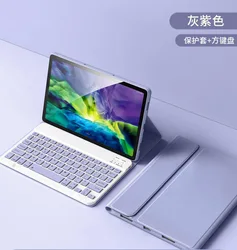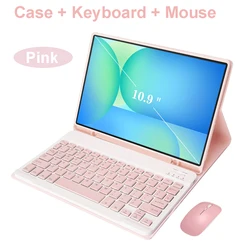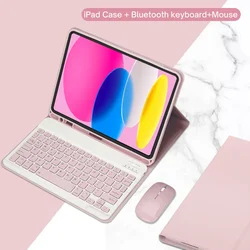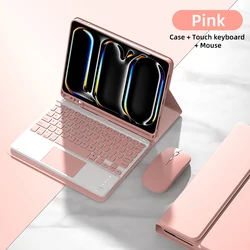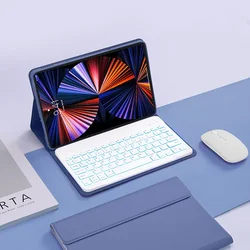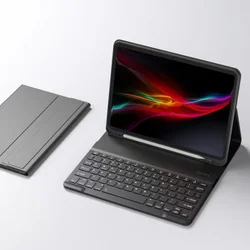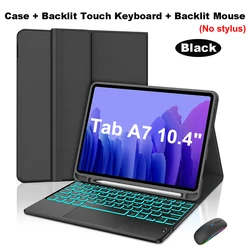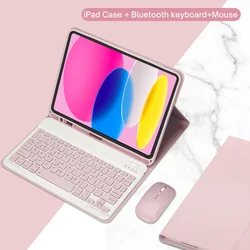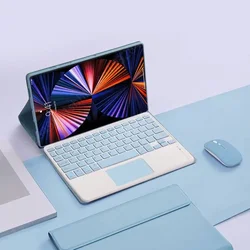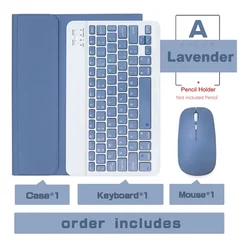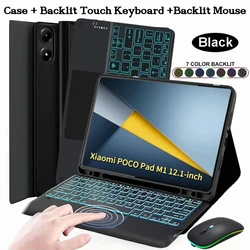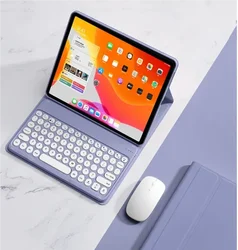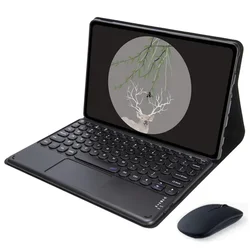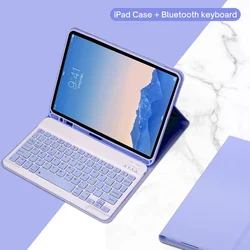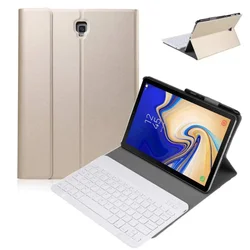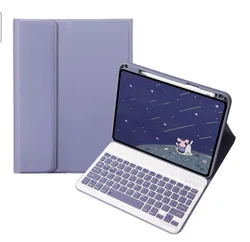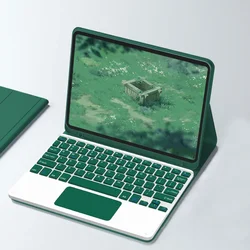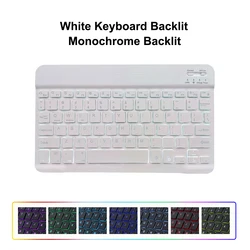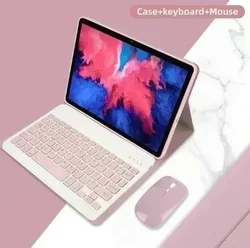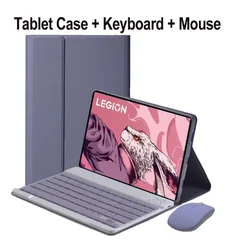




Keyboard Case for Samsung Galaxy Tab S8 Ultra 14.6-Inch Tablet
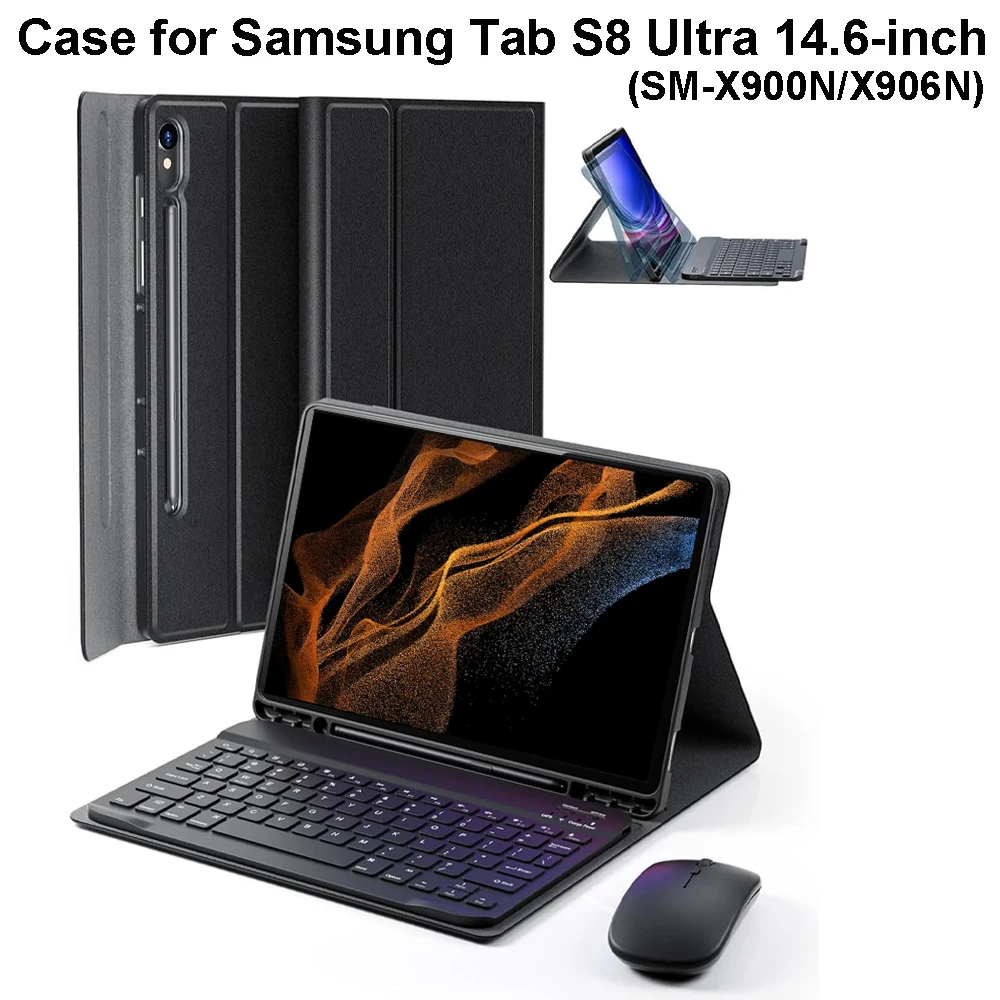
This specialized keyboard case is meticulously designed for the Samsung Galaxy Tab S8 Ultra 14.6 inch (SM-X900N/X906N) Tablet. Ensure compatibility with your device model for optimal usage.
🔧 Key Features:
💍 Language Options:
Choose between an English-only keyboard or a multilingual version featuring both English letters and additional engraved language characters.
🖐️ Premium Protection:
Benefit from a full protective case with precise cutouts that ensure easy access to all ports and buttons. The triangular stable design offers reliable support and anti-slip protection for added safety.
😎 Efficient Heat Dissipation:
The innovative honeycomb cooling design helps maintain a normal temperature for the tablet, preventing overheating even during prolonged use.
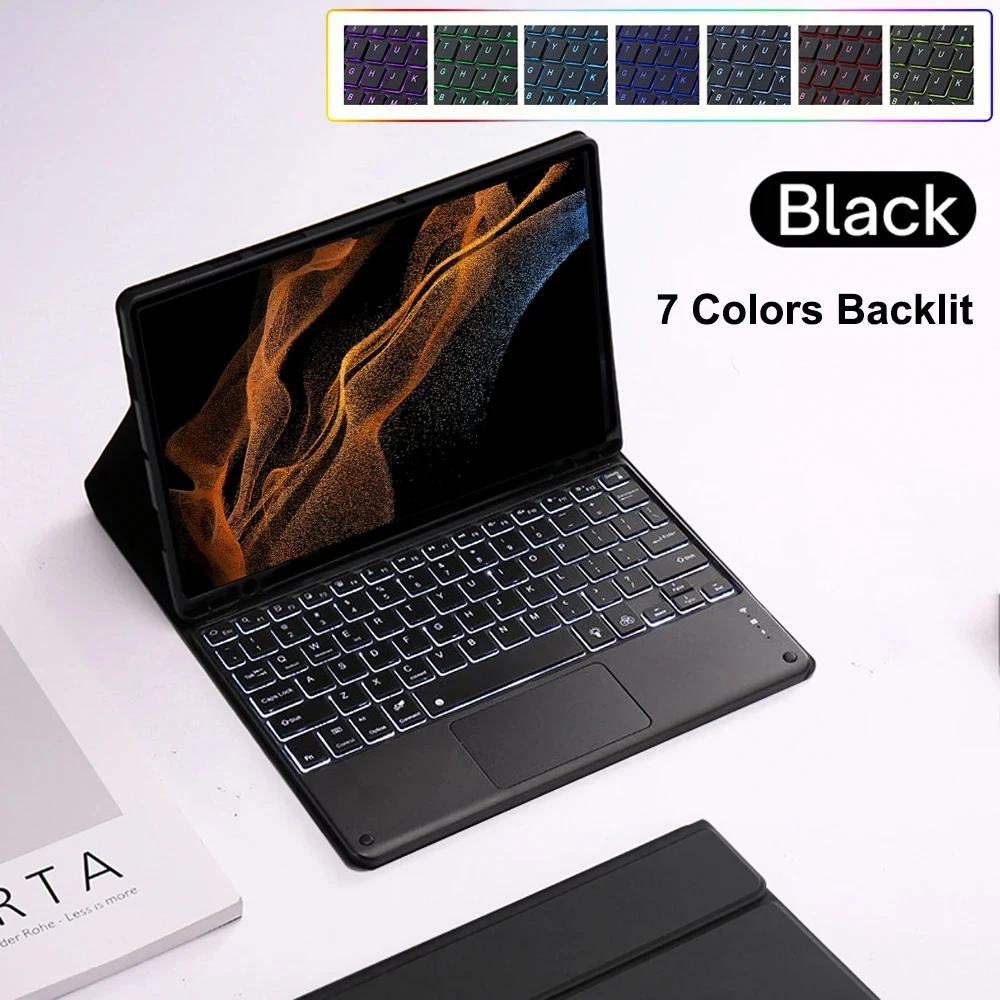
📶 Magnetic Removable Keyboard:
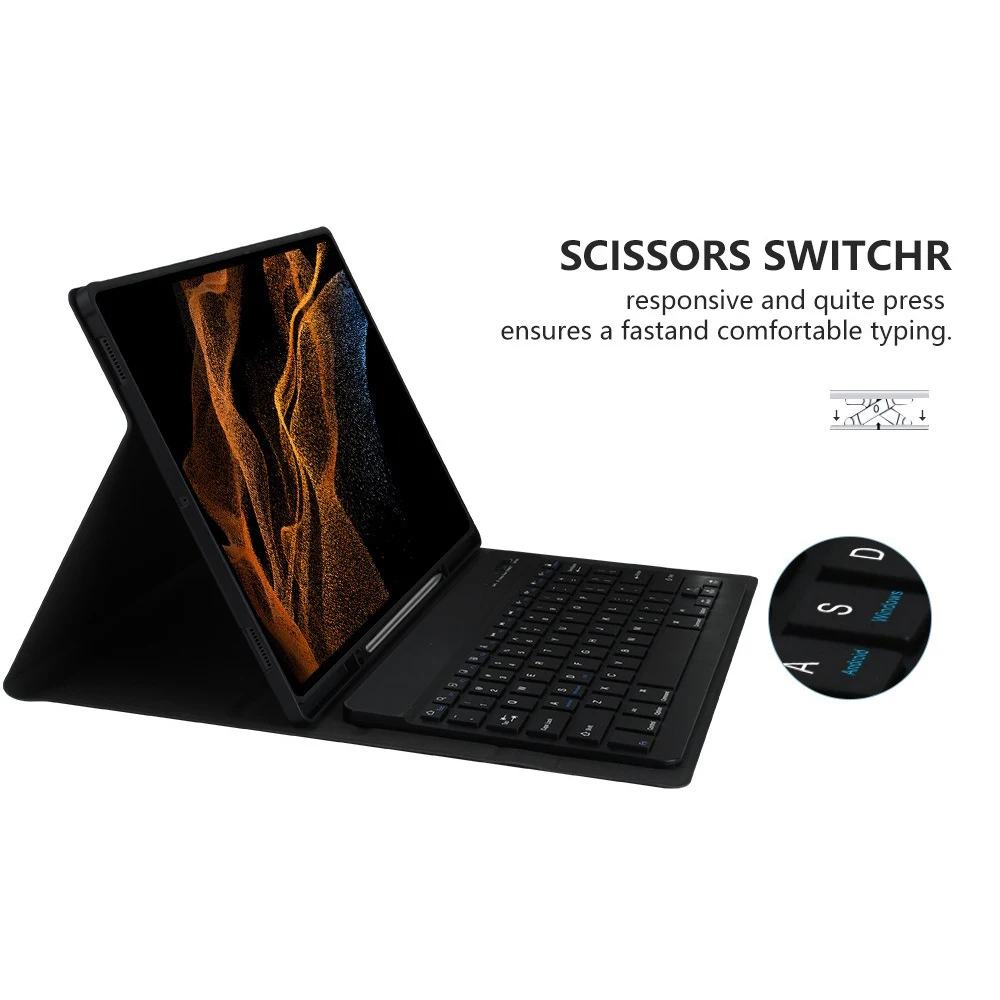
The wireless Bluetooth keyboard can be magnetically attached or removed as needed, allowing for flexibility and convenience. The soft material of the case provides cushioning to protect the tablet from bumps and falls.
✨ Color Variety:
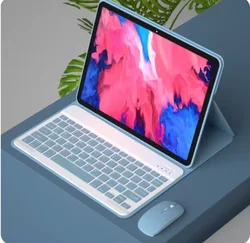
Available in various colors, this case adds a stylish touch to your day, meeting both aesthetic and functional preferences.
🔵 Seamless Bluetooth Connection:
Transform your tablet into a notebook with the delay-free Bluetooth connection. It easily pairs with any Bluetooth-enabled device for an efficient working setup.
How to Connect Keyboard & Mouse:
1. Connect the mouse first, then the keyboard.
🔵 2. For the mouse:
Push the switch to the "Bluetooth" icon and find the Bluetooth connection labeled "Mouse" in your device’s Bluetooth list.
🔵 3. For a normal keyboard:
Switch to "ON" in the upper right corner, press "Connect", and find "Keyboard" in the Bluetooth list.
🔵 4. For a touchpad keyboard:
Turn on the keyboard, press Fn+C, and find "Keyboard" in the Bluetooth list.
Frequently Asked Questions:
🔘 Q: What should I do when connecting the mouse for the first time?
A: Press the left button, right button, and scroll wheel simultaneously for 3-5 seconds.
🔵 Q: Is the scroll direction the same for USB connector and Bluetooth connection?
A: No, the scroll direction differs. With the USB connector, it matches a computer mouse, while the Bluetooth connection is opposite.
Q: How to switch between different systems?
A: Use the following commands:
- Fn+Q for Android
- Fn+W for Windows
- Fn+E for iOS
Switch the system before connecting the tablet.
🔵 Q: Why are the Bluetooth keyboard letters messy?
A: Ensure the keyboard language is set to English and follow the steps to reset if needed.
🧰 Q: How to configure the input method for different languages?
A: For a Samsung tablet, navigate to Settings → System → Language & input → Add New Keyboard. Adjust settings accordingly for other systems.
Q: How to change the mouse scroll wheel direction?
A: After connecting the mouse, go to General → Trackpad & Mouse → close Natural Scrolling.
If this item arrives after the delivery date given at checkout, you will be emailed a £5.00 credit voucher to use on your next order