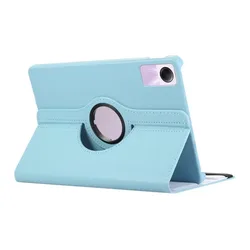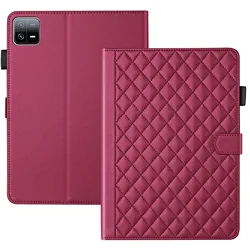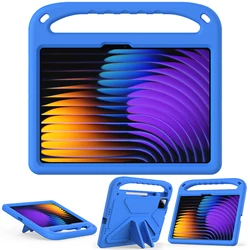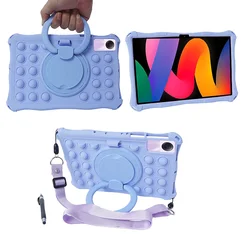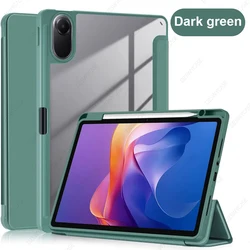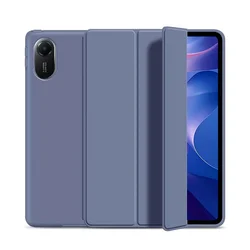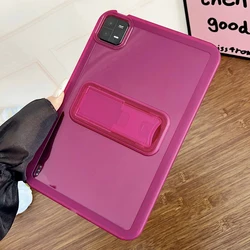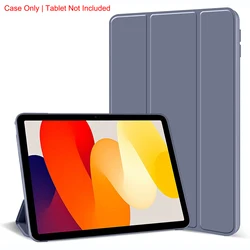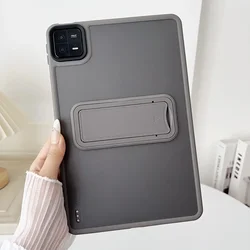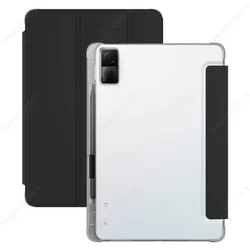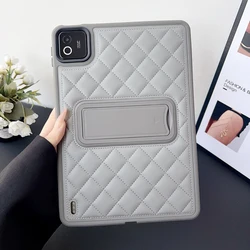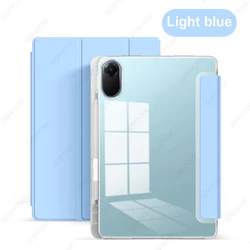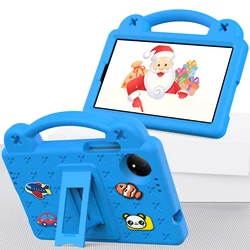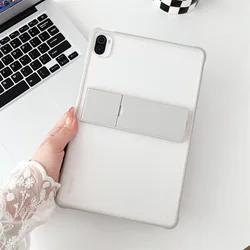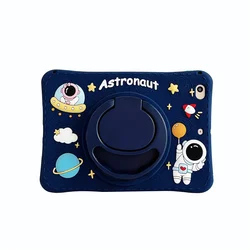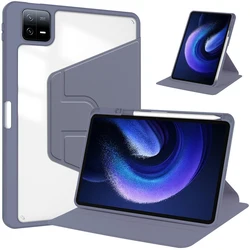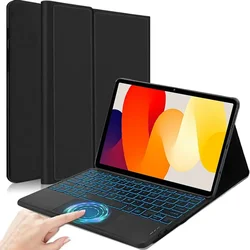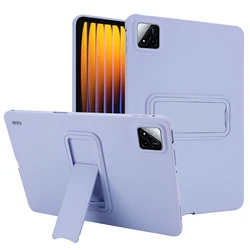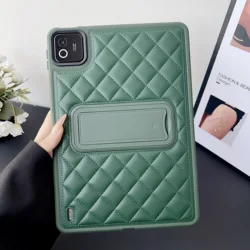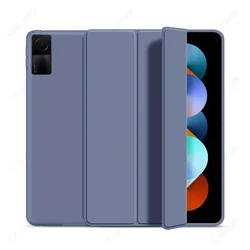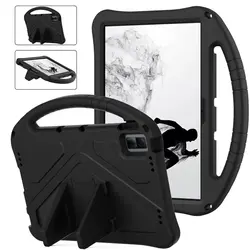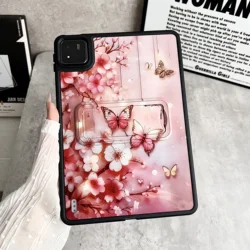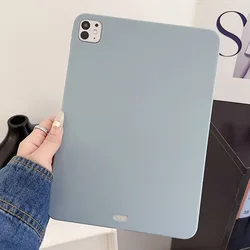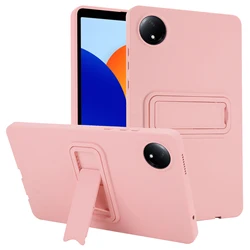
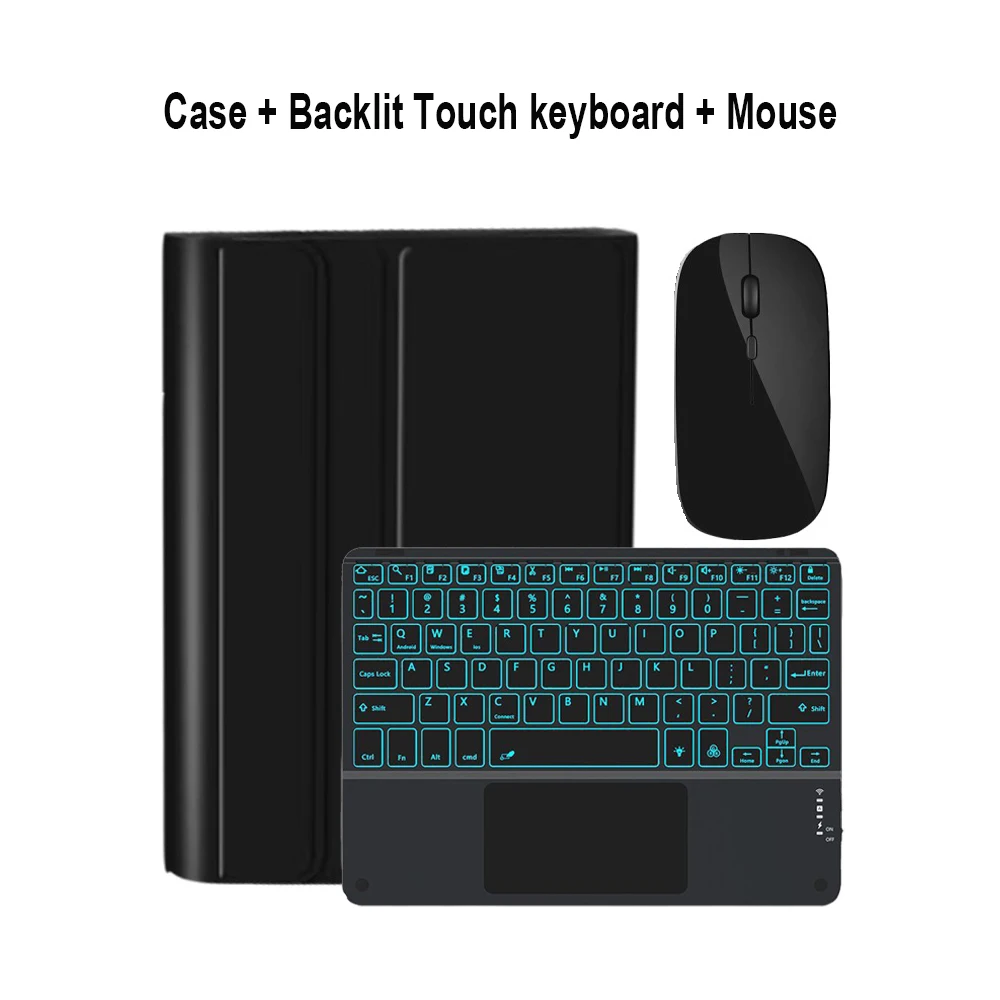
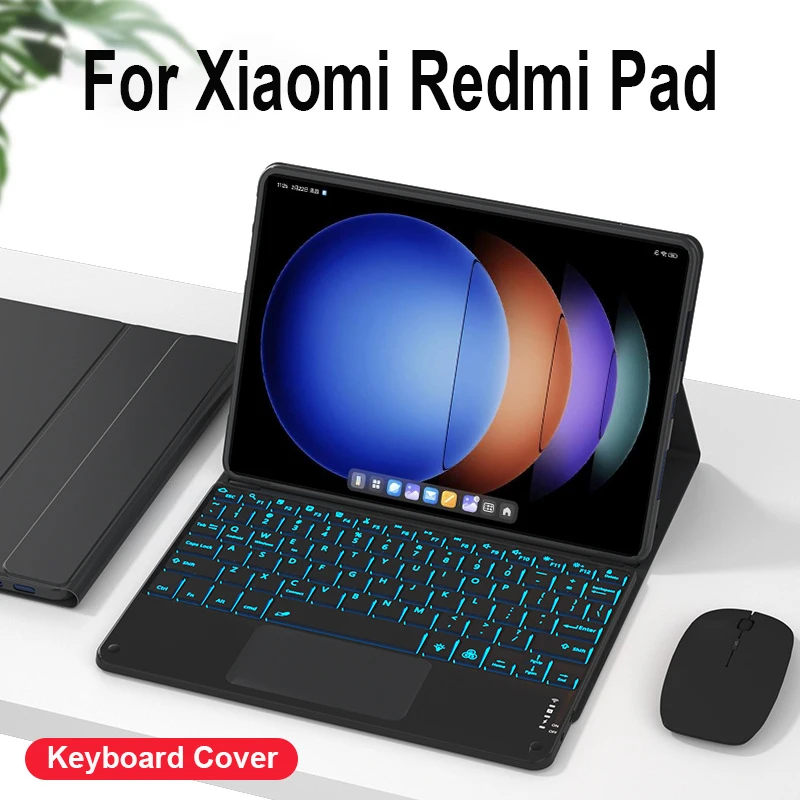

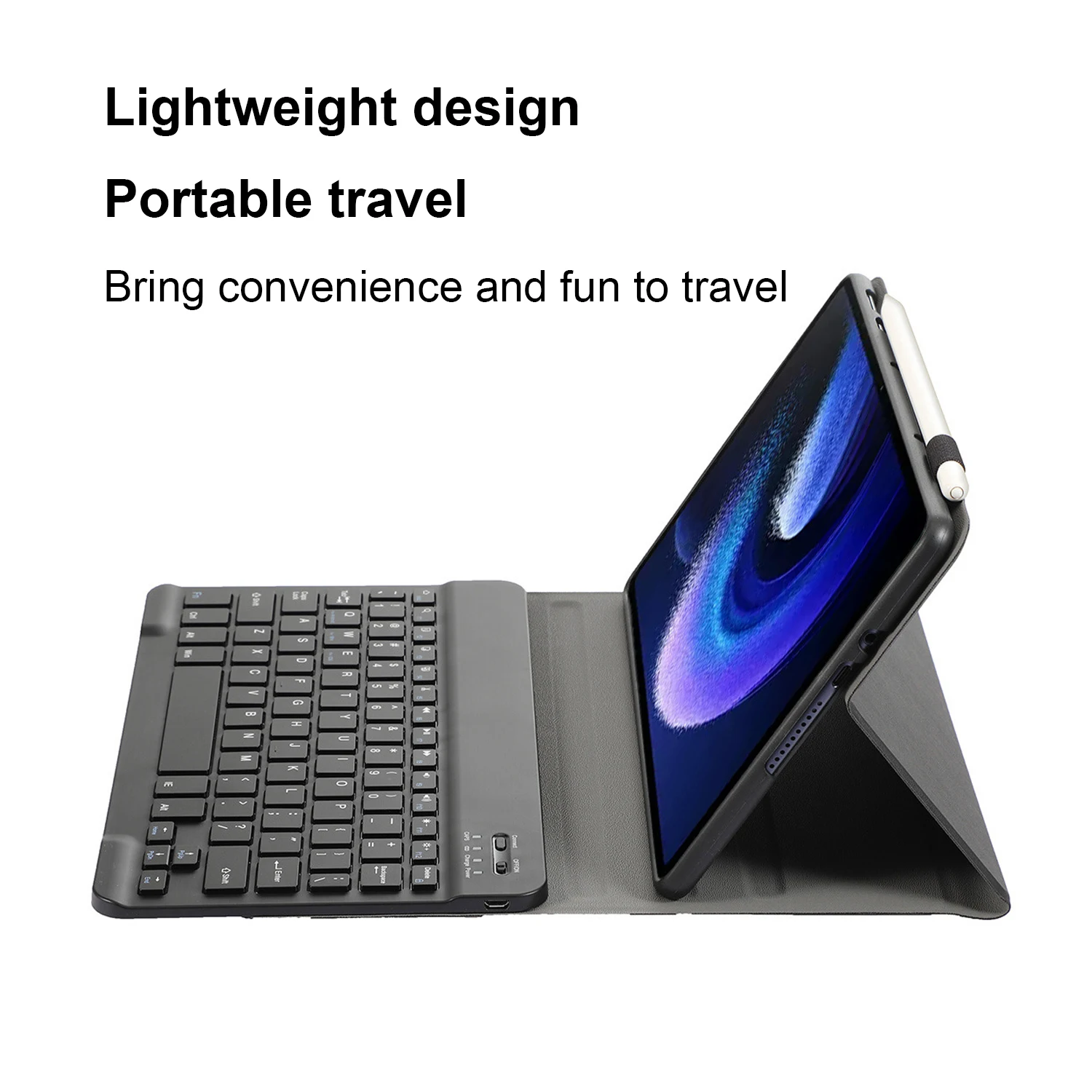


🔴 Xiaomi Redmi Tablet Keyboard Cover: A versatile accessory designed for various Xiaomi tablets including the Xiaomi Pad 6S Pro 12.4, Mi 5, Mi 6 Pro 11, Redmi Pad SE 11, and Pad 10.61. Ensure compatibility by confirming your tablet model before making a purchase.
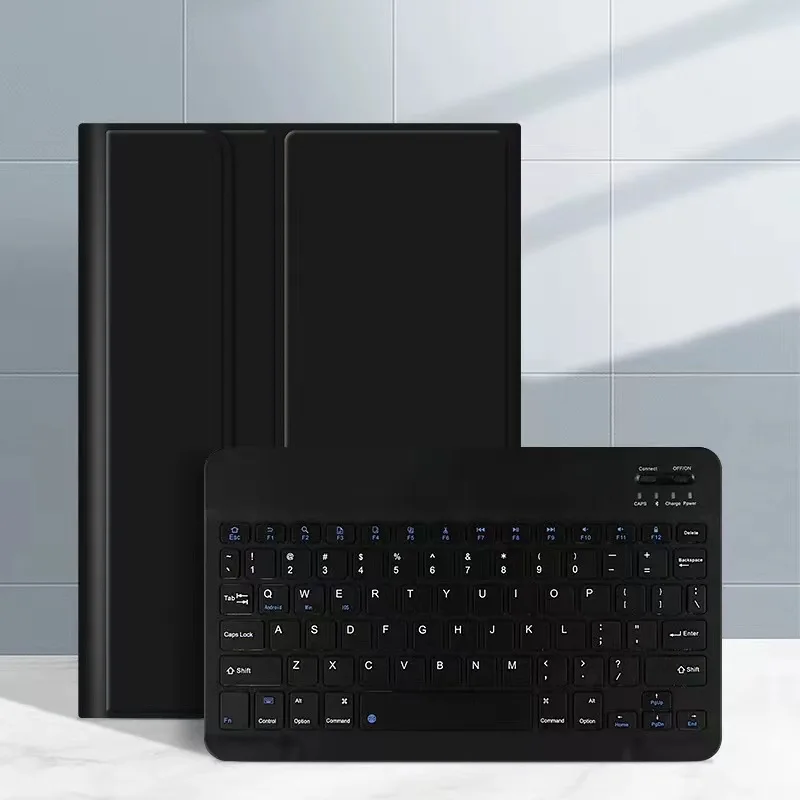
👑 Elegant English Keyboard: This keyboard features English letters exclusively, offering a user-friendly typing experience.
📦 Note:
- The digital tablet and stylus are not included in the package.
- Colors may vary; refer to the actual product for true color representation.
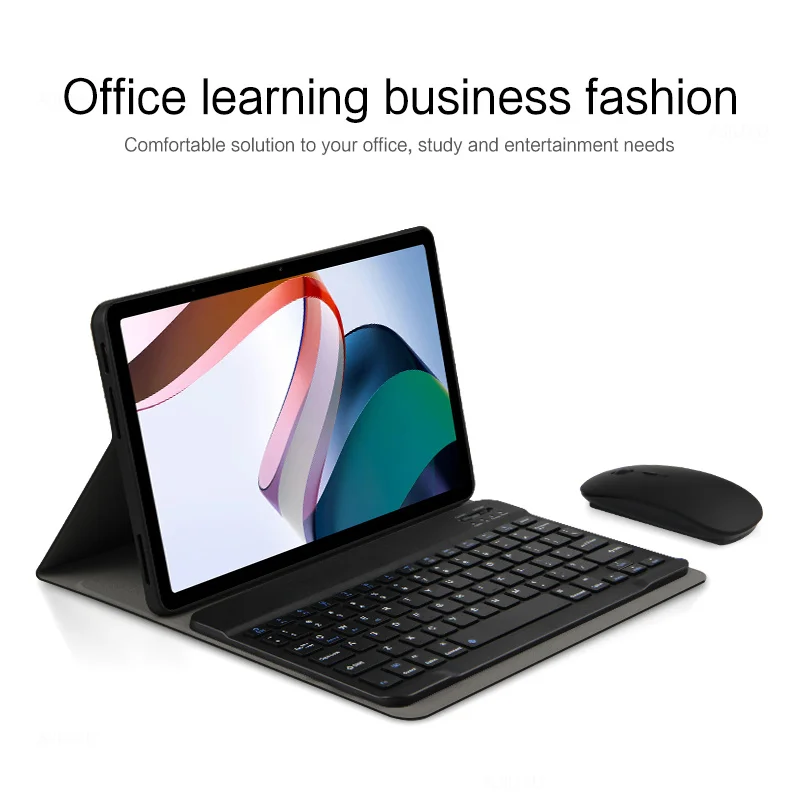
🧩 Multi-Functional Utility: Seamlessly integrate this keyboard case into your office, study, and entertainment setups, making it a versatile solution for various needs.
🧩 Bluetooth Keyboard Leather Case: Designed to transform the way you work by easily converting your tablet into a laptop-like setup, this keyboard case offers style and functionality.
🕊️ Portable & Lightweight: With its compact design, it's the perfect travel companion, adding convenience and a touch of fun to your journeys.
🔵 Detachable Keyboard: Enjoy the flexibility of using the keyboard independently as it connects directly to any Bluetooth-enabled device.
🔵 Keyboard & Mouse Connection:
1. Connect the mouse first, followed by the keyboard.
2. For the mouse, switch to the "Bluetooth" icon and find "Mouse" in your device’s Bluetooth list.
3. For a normal keyboard, switch to "ON", press "Connect", and find "Keyboard" in your device’s Bluetooth list.
4. For a touchpad keyboard, turn it on, press Fn+C, then find "Keyboard" in your device’s Bluetooth list.
Frequently Asked Questions:
🔘 Connecting the Mouse: For the first connection, press the left button, right button, and scroll wheel simultaneously for about 3-5 seconds.
🔵 Scroll Direction Differences: The scroll direction varies between USB and Bluetooth connections. Via USB, the scroll aligns with a computer mouse. Via Bluetooth, it moves oppositely.
🧰 System Switching: Adjust the system settings using Fn+Q (Android), Fn+W (Windows), and Fn+E (iOS) before connecting your tablet.
🔵 Messy Keyboard Letters:
- Ensure your device's keyboard language is set to English.
- Disconnect the Bluetooth connection, click Ignore, then reconnect.
- Reset using the L, S, and Z keys simultaneously.
💍 Configuring Input Methods for Different Languages: On a Samsung tablet, navigate to Settings → System → Language & Input → Add New Keyboard. For other systems, follow similar steps.
Changing Mouse Scroll Direction: With the mouse connected, go to General → Trackpad & Mouse, and toggle the "Natural Scrolling" option.
If this item arrives after the delivery date given at checkout, you will be emailed a £5.00 credit voucher to use on your next order