Phone Cases
Chargers and Cables
Gaming
Gadgets
Tablet and iPad Cases
Your Account
Language
Business
Phone Data
Contact Us
4.3 Google Shopping Rating Over 2 million customers since 2013 Based in the UK Free delivery order over £30+

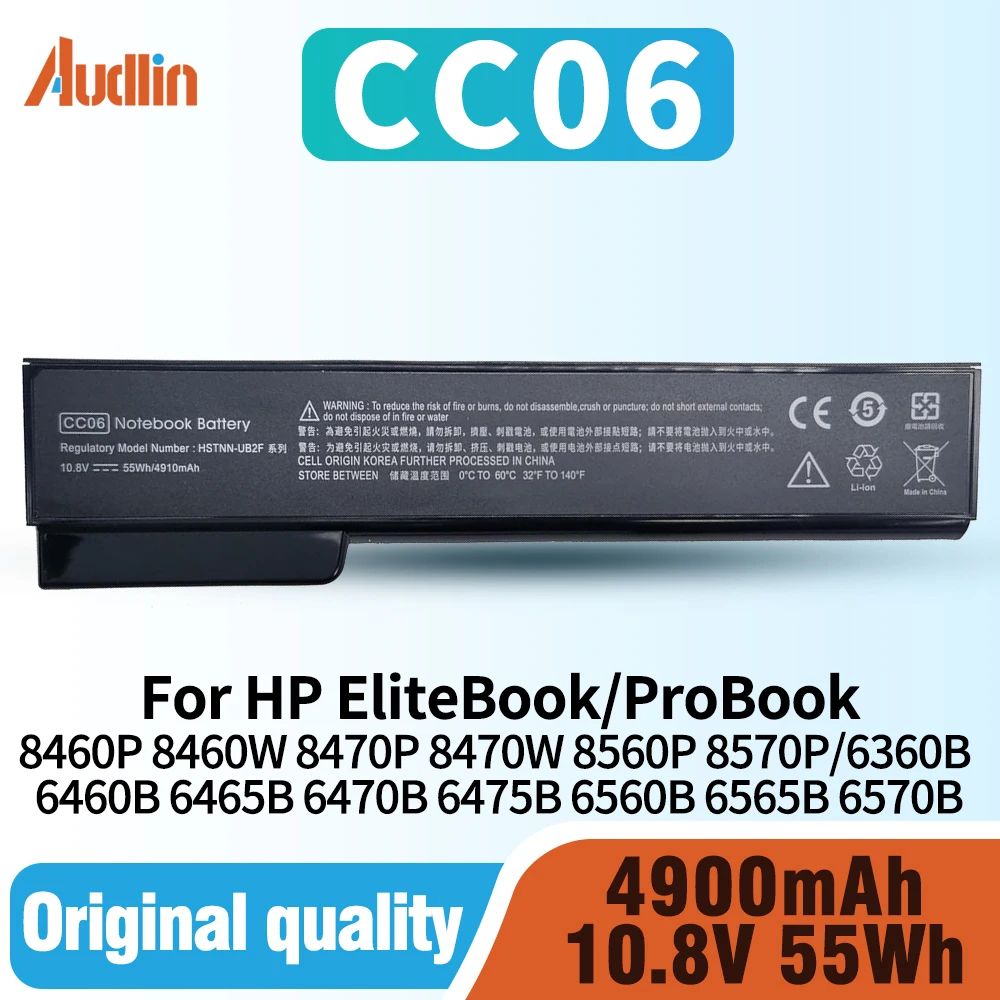
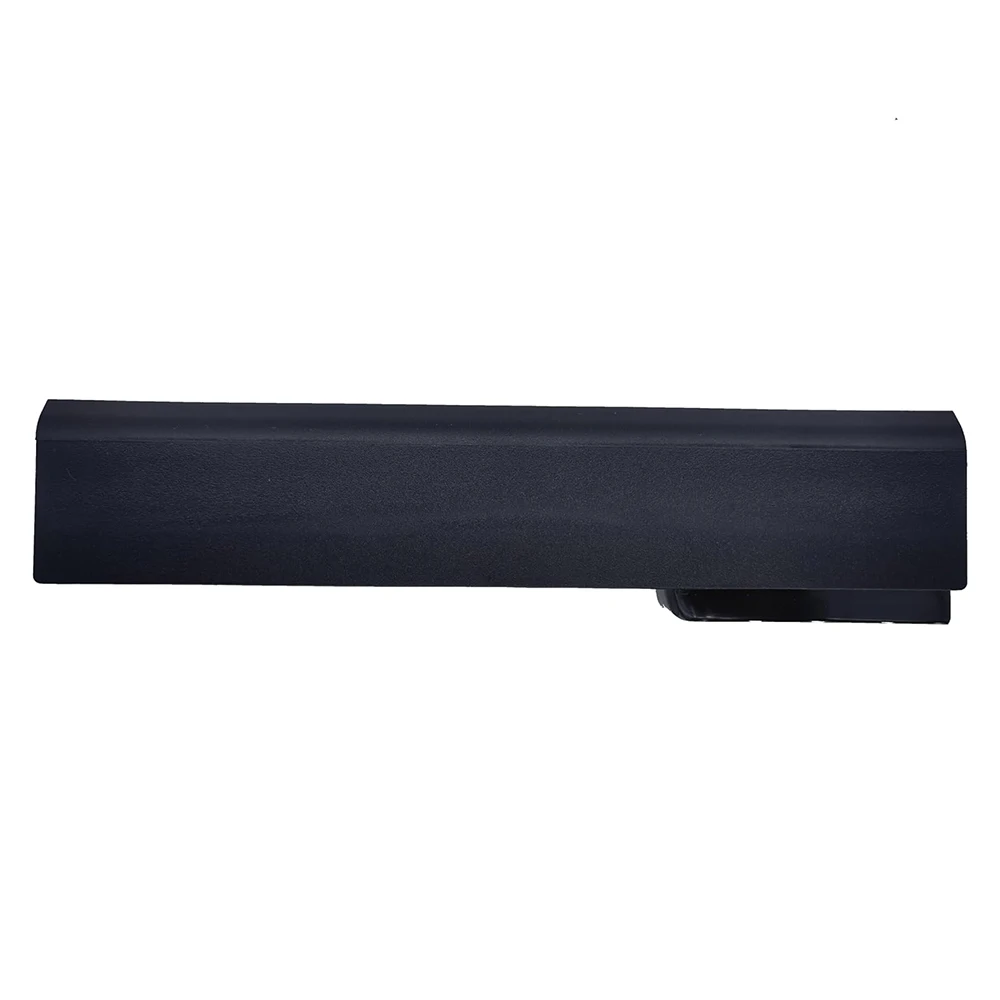
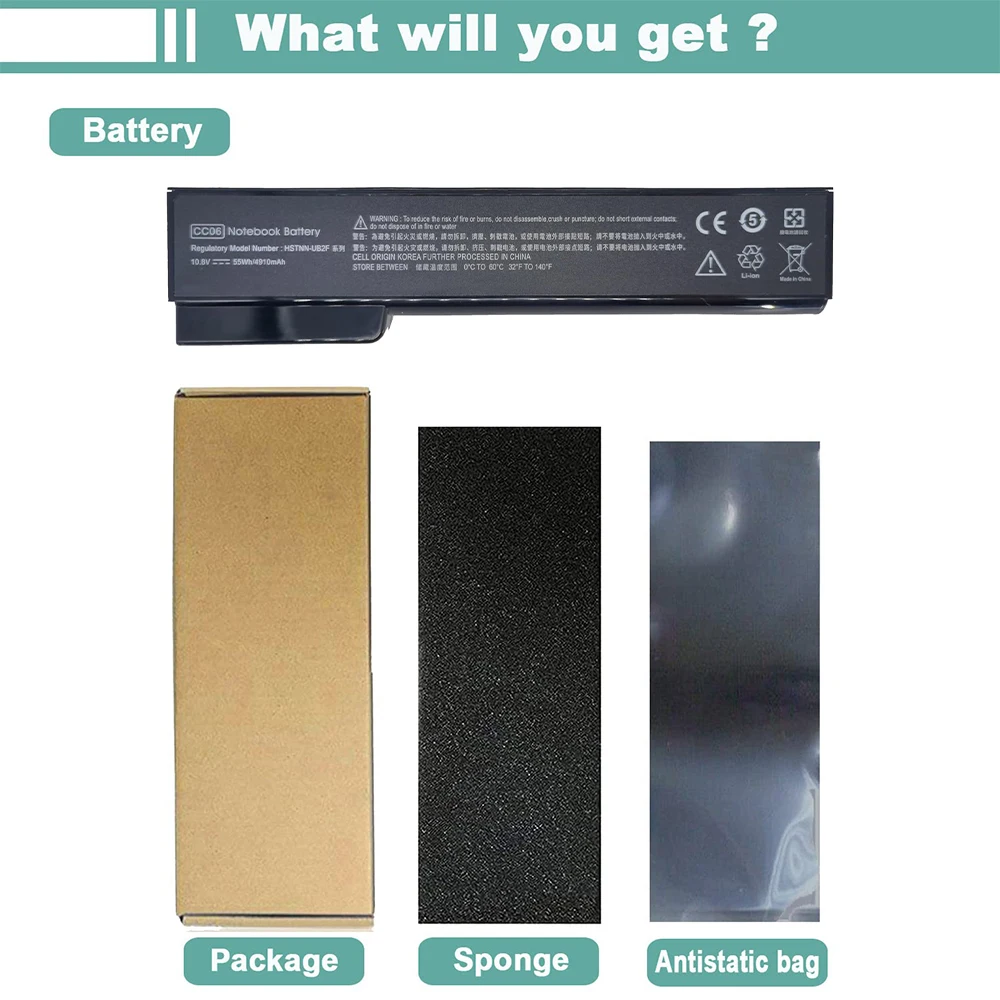
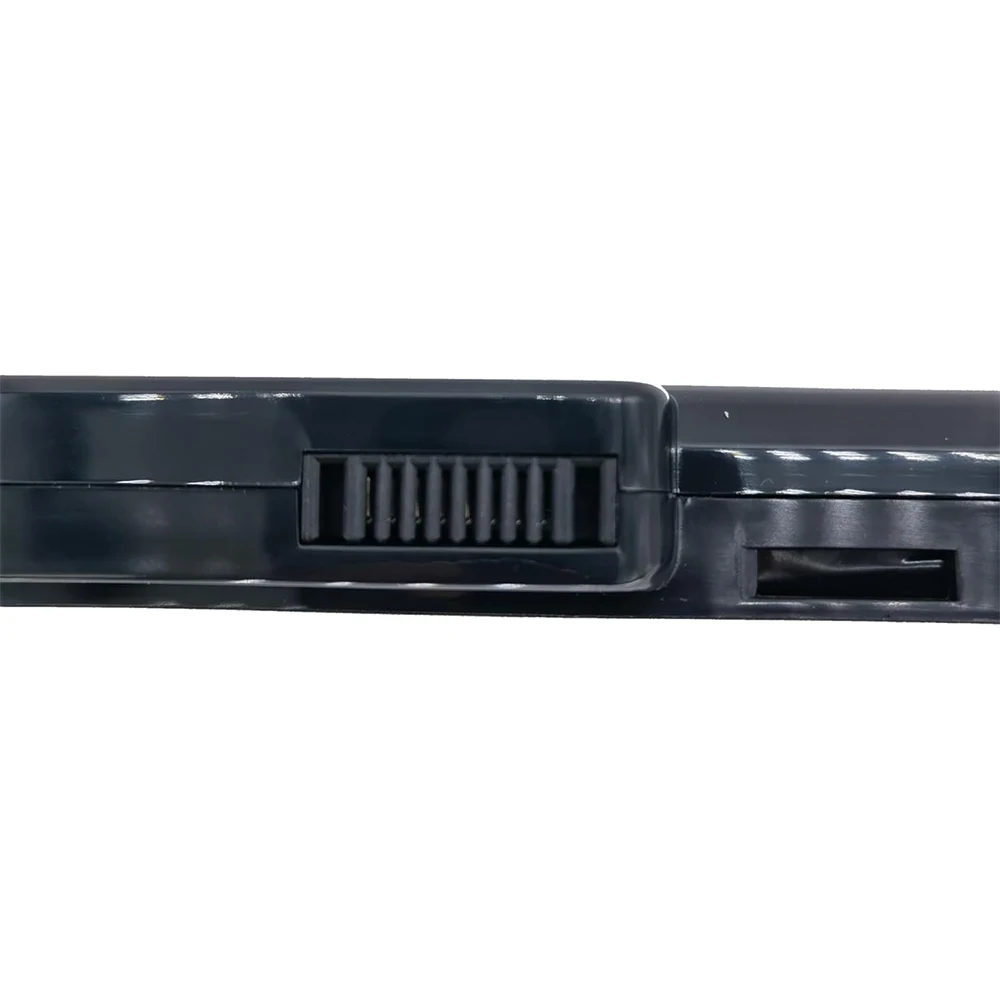
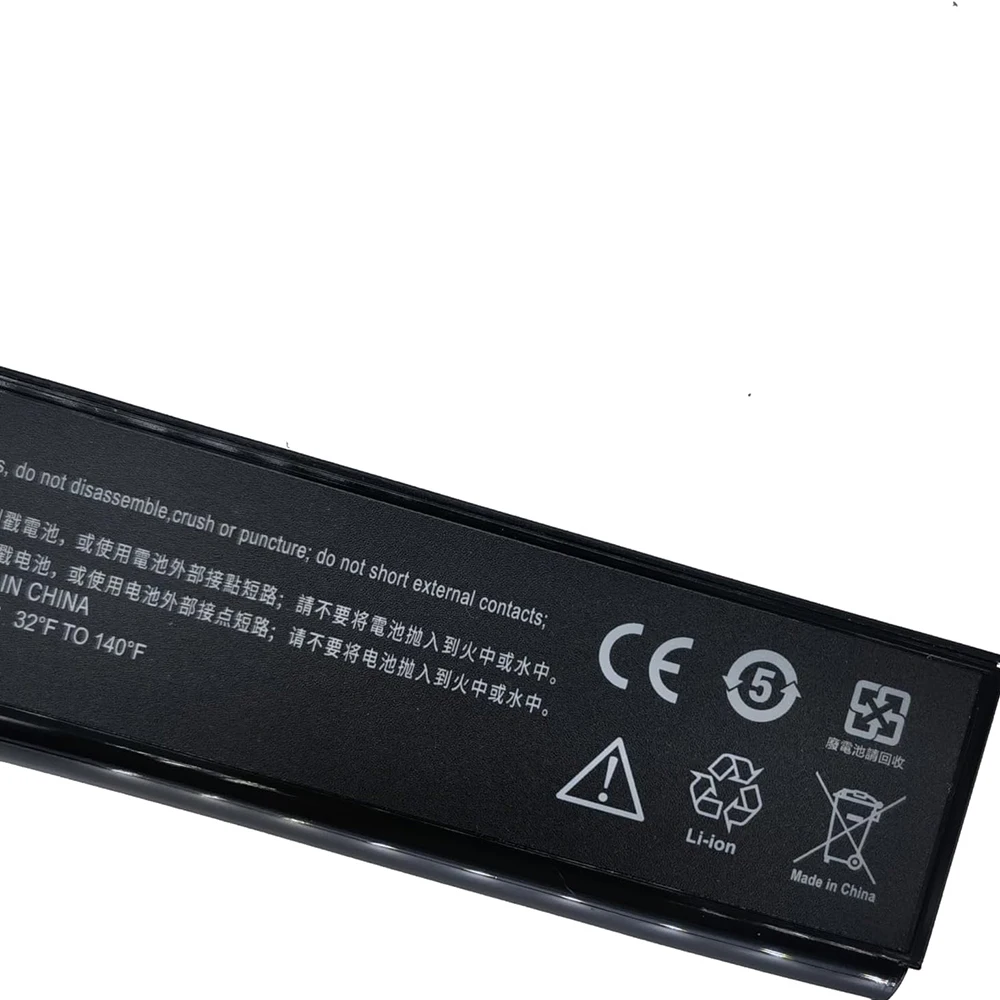
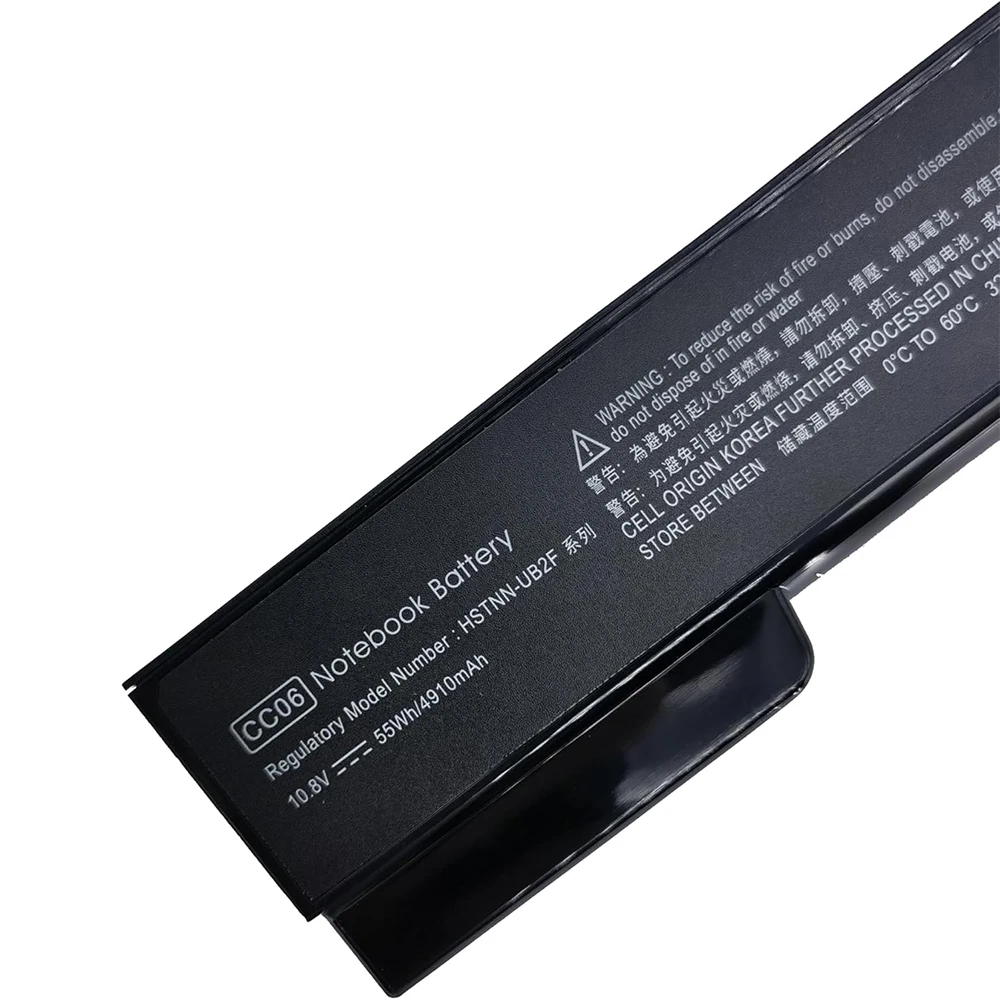
High - Performance Laptop Battery for HP EliteBook and ProBook Series (CC06 10.8V 55Wh)

High-Performance Laptop Battery for HP EliteBook and ProBook Series

Upgrade Your Power: CC06 Laptop Battery for HP EliteBook and ProBook Series

πŸ’ The CC06 Laptop Battery is expertly designed to be fully compatible with a wide range of HP laptops, ensuring that your device remains powered and functional whenever you need it. Specifically tailored for the HP EliteBook 8460P, 8460W, 8470P, 8470W, 8560P, 8570P as well as the HP ProBook 6360B, 6460B, 6465B, 6470B, 6475B, 6560B, 6565B, 6570B, this battery brings reliability and performance to your fingertips.

🎯 Numerous Compatible Part Numbers
The versatility of the CC06 battery is reflected in its compatibility with a variety of part numbers including HP: 628369-421, HSTNN-F08C, HSTNN-OB2G, 630919-421, and many others. This extensive list ensures that you can find just the right fit for your specific laptop model.

How to Find Your Laptop Model
To ensure you purchase the correct battery, it's essential to identify your laptop model. You can easily do this by following these simple steps:

  1. Press Windows + R to open the Run window.
  2. Type "msinfo32" and click OK to access System Information.
  3. In the System Summary section, locate the System Model item in the right pane.

Installing Your New Battery
Changing your laptop battery is a straightforward process that can be accomplished by following these steps:

  1. Ensure your laptop is powered off and disconnected from any power source.
  2. Remove the old battery, and carefully position the new battery in the battery compartment while connecting its wiring.
  3. If you're unsure about the installation process, numerous tutorial videos are available online to assist you.

πŸ’ Resolving Recognition Issues
If your laptop does not recognize the new battery, the problem may be related to a loose connection. Try to reinstall the battery, ensuring the battery cable and motherboard interface are tightly connected. Other factors could include damage to conductive materials at contact points; comparing with your original battery might help. Additionally, check if the battery drive is functioning correctly and update the driver software if necessary.

πŸ† Best Practices for Battery Maintenance
To enjoy the best performance from your new battery, adhere to the following maintenance tips:

  1. When using your new battery for the first time, charge it to 100% and then discharge it to around 20% three times to properly prime it.
  2. Avoid letting the battery drain completely to 0%. Consistent deep discharging can lead to instability and degradation.
  3. Avoid keeping the battery constantly at 100% charge. This can increase internal resistance over time and reduce overall capacity.
  4. Regularly cycle the battery, discharging and charging it at least once a month, especially if it's not in frequent use. Store unused batteries fully charged to prolong their lifespan.
  5. Understand that battery life is influenced by your laptop usage. Running multiple applications simultaneously or engaging in power-intensive tasks will deplete battery faster compared to light browsing or standby usage.

πŸ”‹ Maximizing Your Battery Life
To get the most out of your laptop’s battery, consider these practical tips:

  1. Adjust your laptop's power plan settings to 'Power Saver' and lower the processor state to 20% under advanced settings.
  2. Regularly clean your laptop to prevent dust buildup, which can inhibit airflow and heat dissipation, potentially damaging your battery.
  3. Turn off Wi-Fi, Bluetooth, and unnecessary features when they're not needed to conserve battery life during tasks that do not require network connectivity.

πŸ’ Keeping these guidelines in mind will not only ensure that your CC06 Laptop Battery performs optimally but also extend its lifespan, enhancing your overall computing experience.

£20.99 In Stock
Quantity:
Colour: CC06 10.8V 55Wh

Delivery Saturday, 24th October - Monday, 26th October
£5.00 On time delivery guarantee

If this item arrives after the delivery date given at checkout, you will be emailed a £5.00 credit voucher to use on your next order
Why choose SDTEK?
Over 2 million customers since 2013
4.3 Google Shopping Rating
Great Trustpilot Rating
Based in the UK
14 Day, easy returns
24 Hour customer services
Buying for your business?
Bulk discounts available on this product
See our quantity discounts and business pricing

Related items