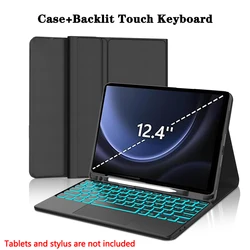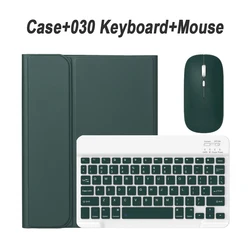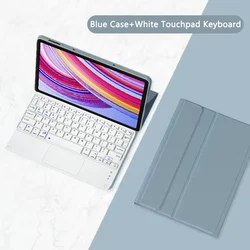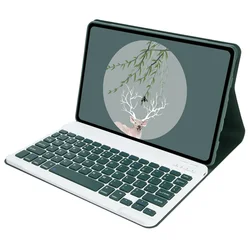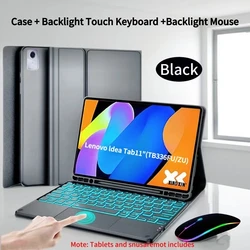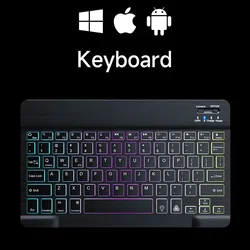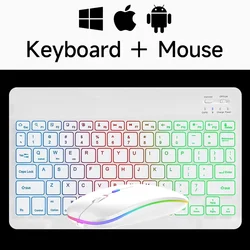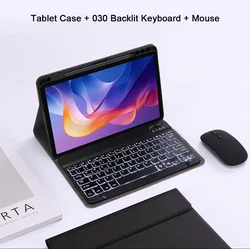

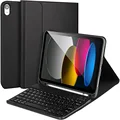
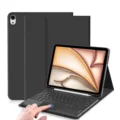
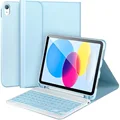

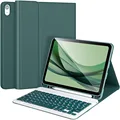



Product Description:
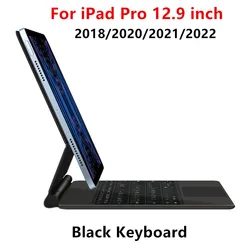
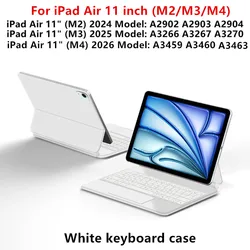
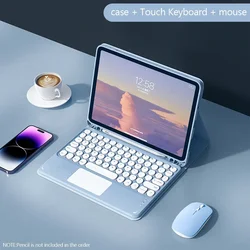
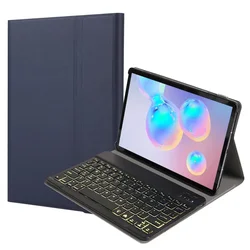
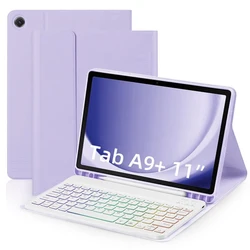
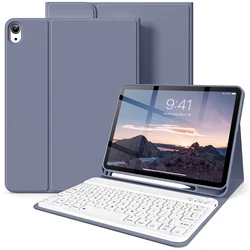
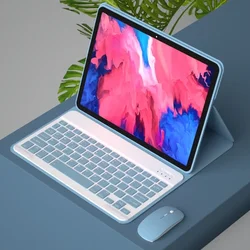
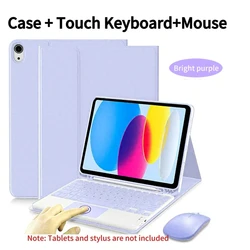
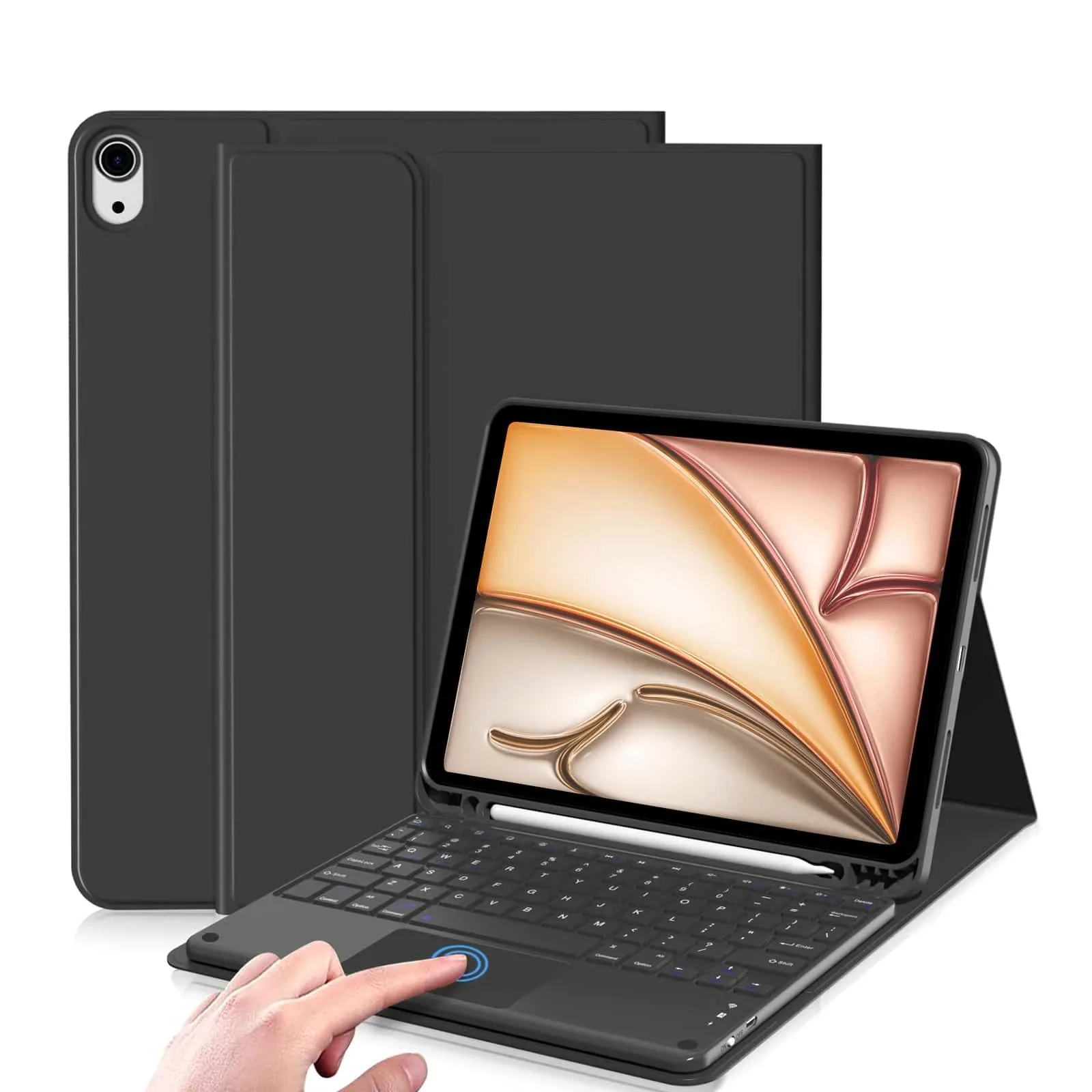
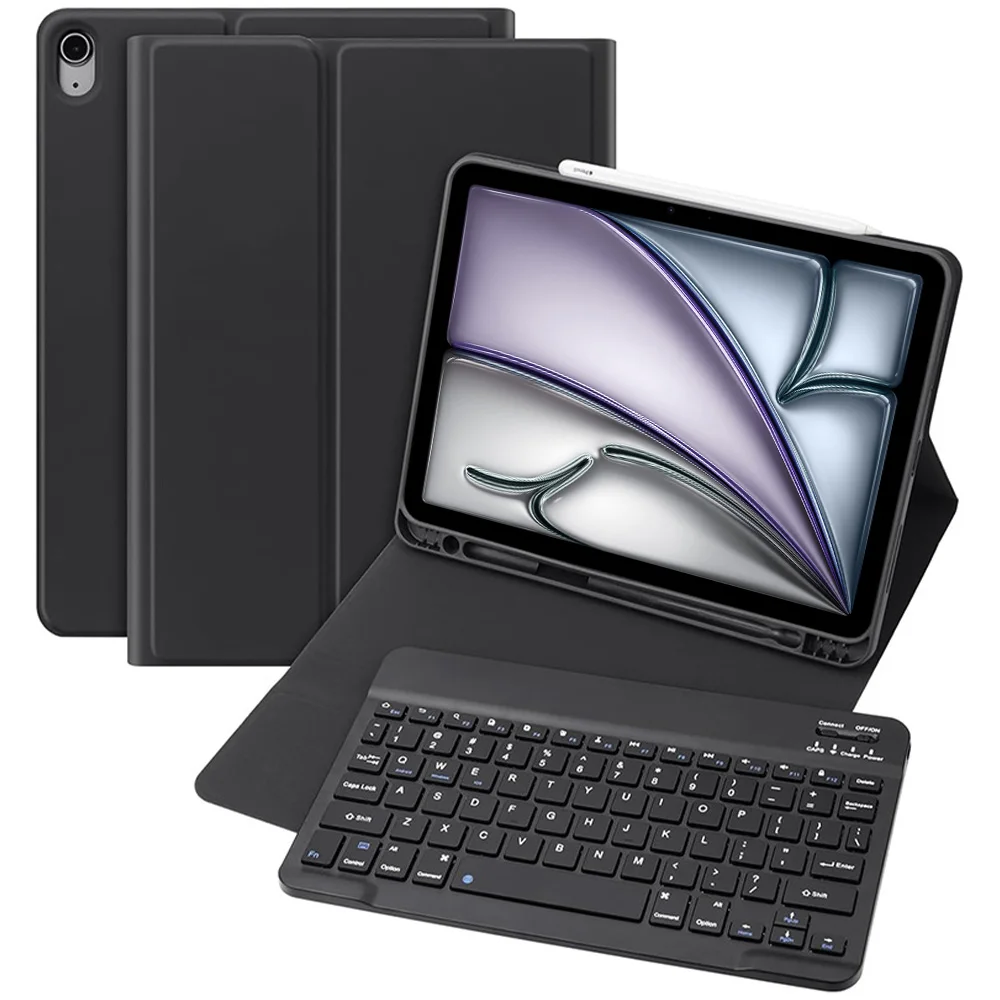
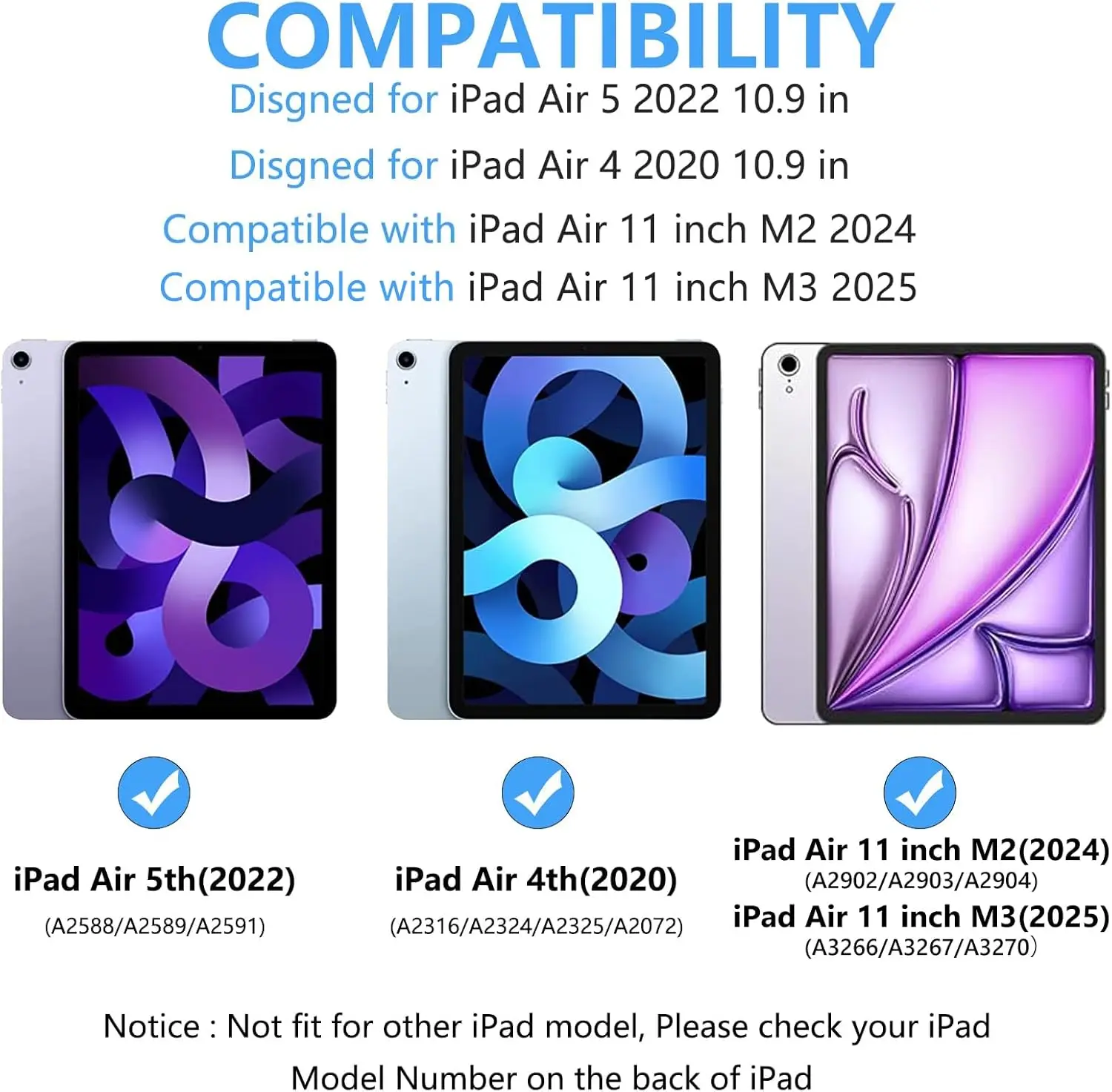
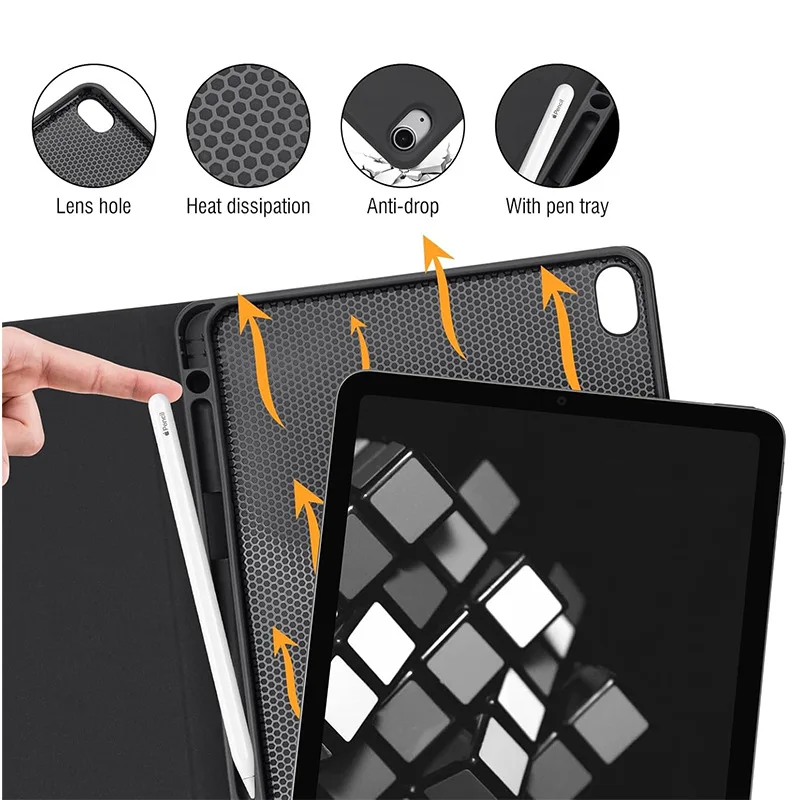
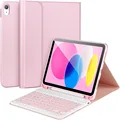
🛡️ Introducing the ultimate protective accessory for your iPad Air 11-inch models, including the cutting-edge M2 and M3 generations. This premium case is designed specifically for the iPad Air 5 (10.9-inch) and iPad Air 4th Generation (10.9-inch), offering a blend of style and functionality that enhances your tablet experience. Featuring a sleek and durable design, this case not only safeguards your device from daily wear and tear but also provides easy access to all ports and buttons.
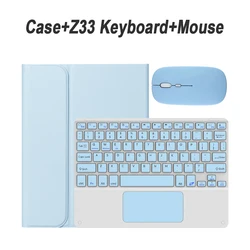
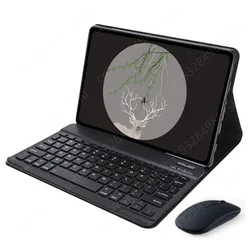
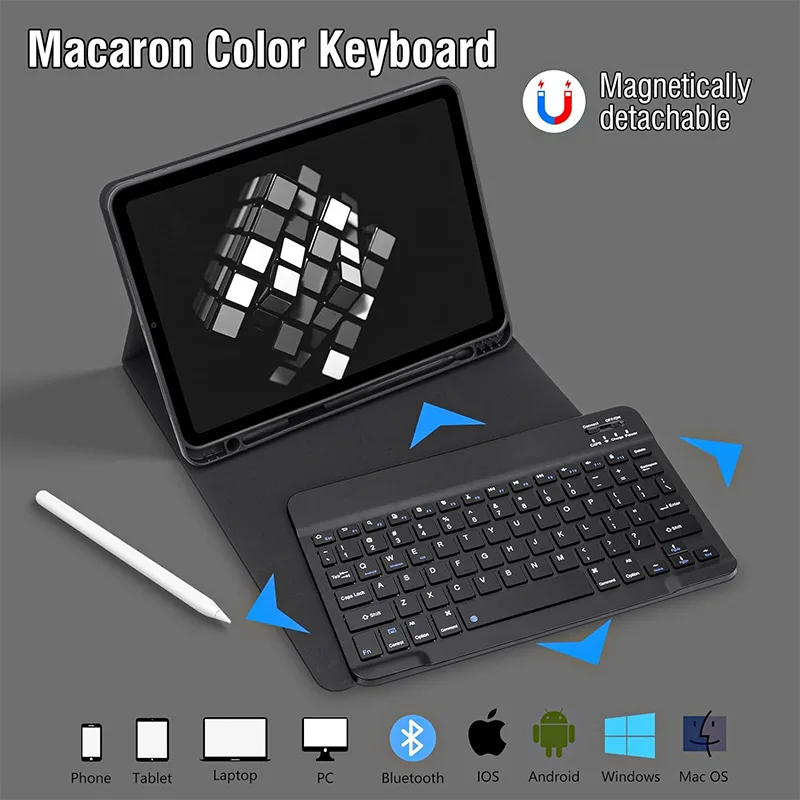
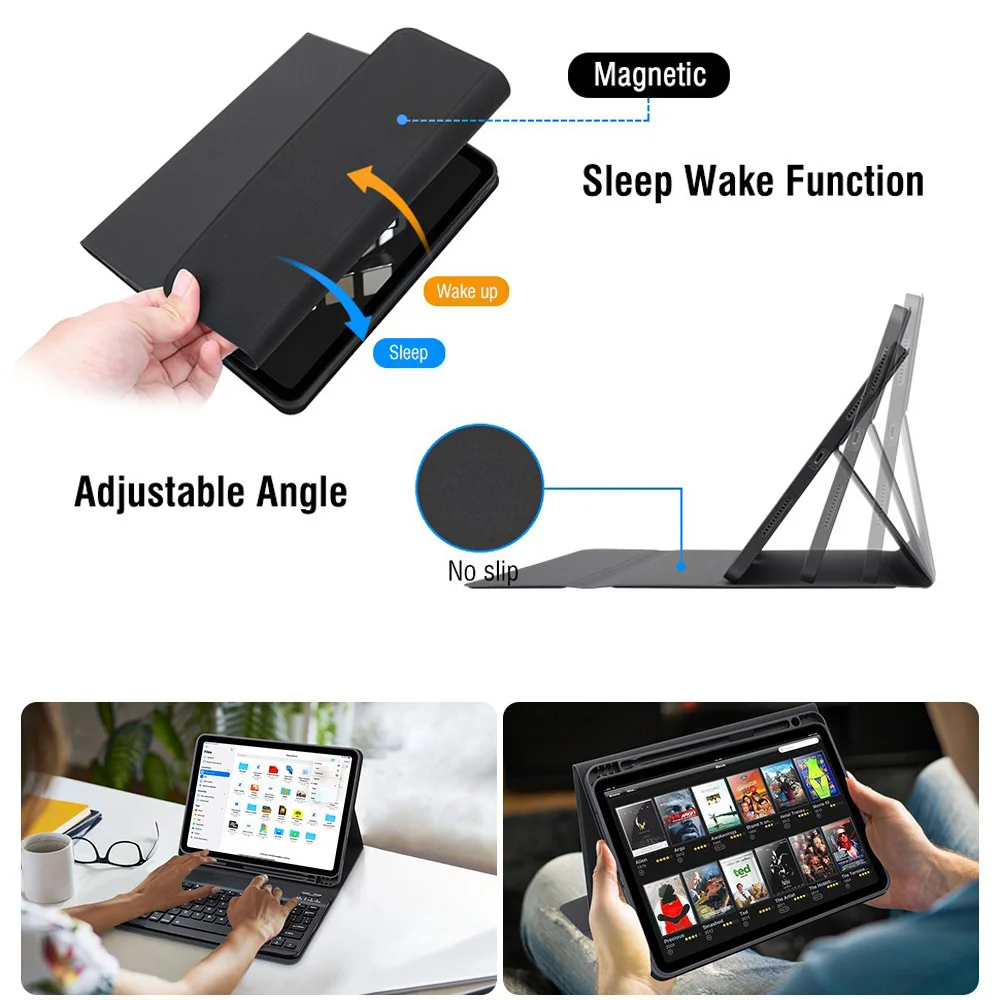
🔒 Equipped with a full-size keyboard, this case transforms your tablet into a powerful productivity tool, making it perfect for both work and play. The responsive keys ensure comfortable typing, while the built-in touchpad allows for effortless navigation, bringing the convenience of a laptop right to your fingertips. Plus, the integrated pencil holder keeps your Apple Pencil secure and at hand, preventing misplacements and ensuring you’re always ready to illustrate your ideas.
⚡ To ensure compatibility, please carefully verify your iPad model before making a purchase. A quick check can be done by examining the model number on the back of the device or by navigating to "Settings" > "About" > "Model" on your tablet. This case is exclusively compatible with the following models:
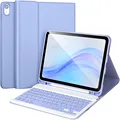
💍 Note: The digital tablet and stylus are not included with the purchase. For clarity, the description provided is for reference purposes, and we recommend referring to the actual product for exact color options.
Keyboard Connectivity:
🔘 Connecting your keyboard is a breeze. Simply turn the switch located in the upper right corner to "ON," press the "Connect" button, and locate "Keyboard" in your device's Bluetooth settings. For the touchpad keyboard, open it, press Fn+C, and then check for "Keyboard" in your Bluetooth list for seamless pairing.
FAQ:
Q: How do I switch between different operating systems?
A: Use the following shortcuts: Fn+Q for Android, Fn+W for Windows, and Fn+E for iOS. Ensure that you switch systems before connecting your tablet to the keyboard.
🔵 Q: Why are the letters on my Bluetooth keyboard displaying incorrectly?
A: This can often be resolved by:
🔵 Q: How can I configure the keyboard for different language inputs?
🧰 A: For example, on a Samsung tablet, navigate to "Settings" > "System" > "Language & input" > "Add New Keyboard." Users of other systems should consult their device's settings to ensure proper configuration, following the provided guidance for iPad users.
If this item arrives after the delivery date given at checkout, you will be emailed a £5.00 credit voucher to use on your next order