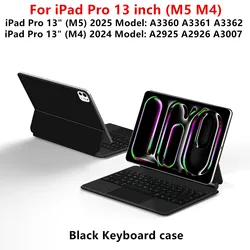
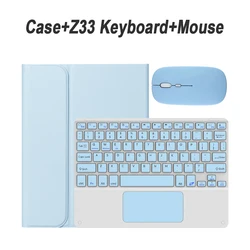
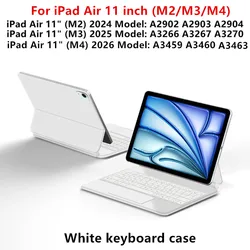
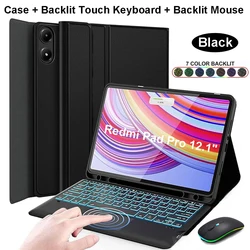
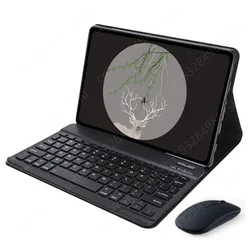
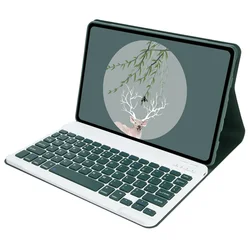
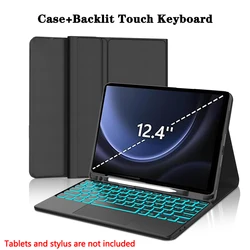
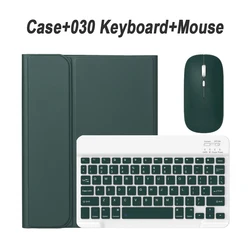
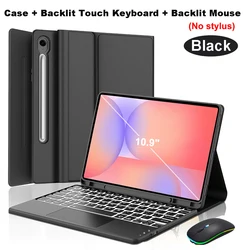
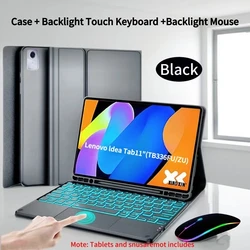
Introducing the Ultimate Case for Xiaomi Pad 7/8
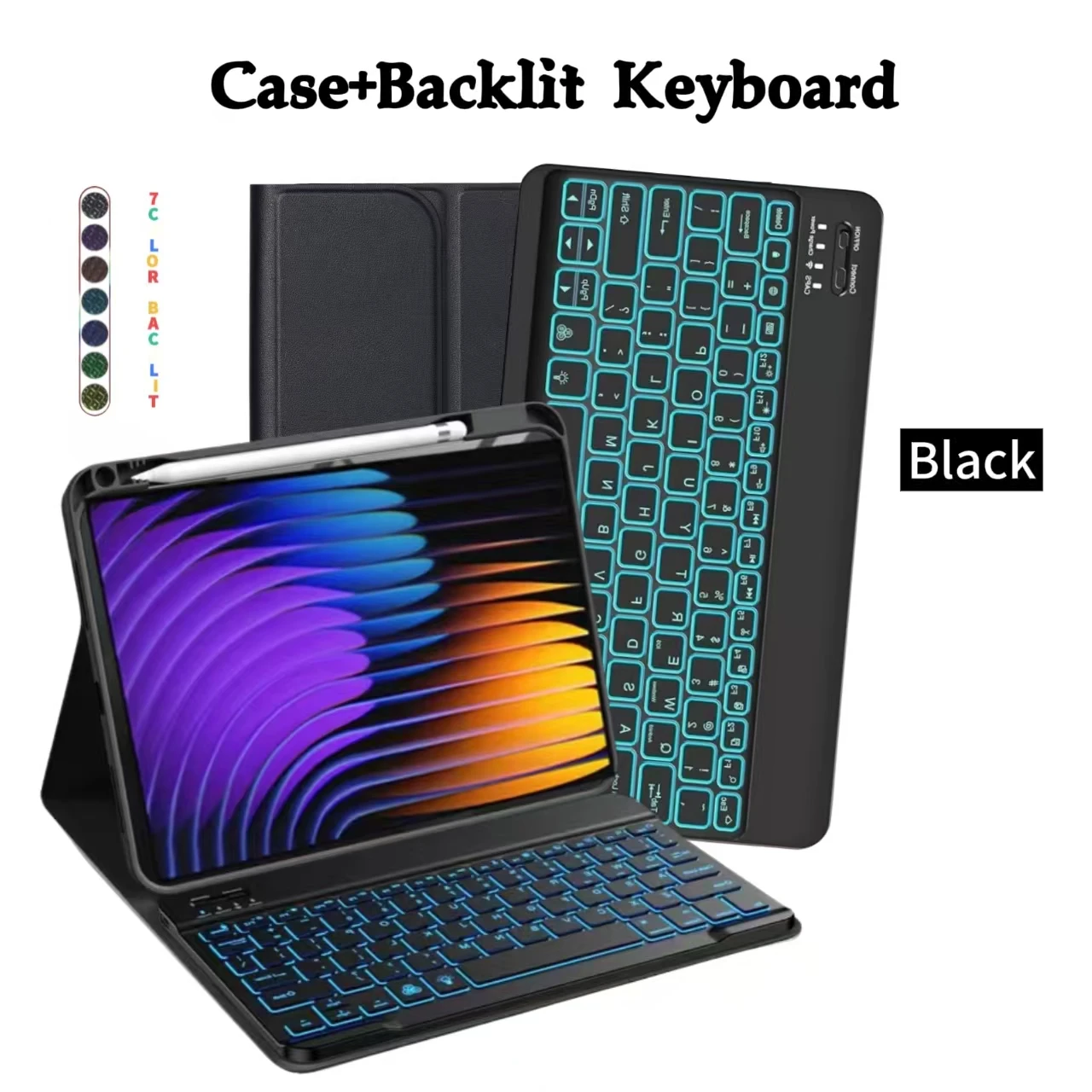
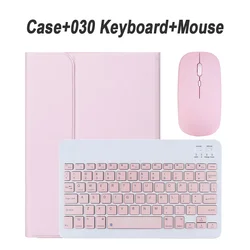
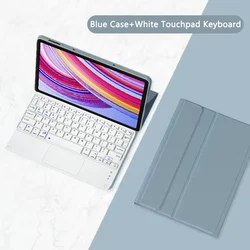
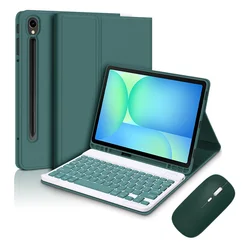
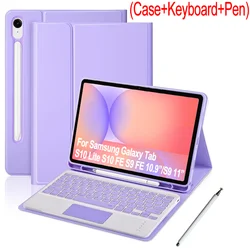
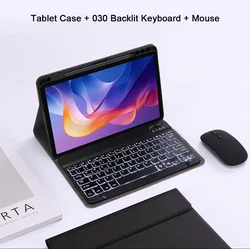
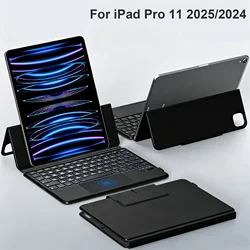
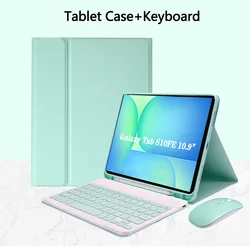
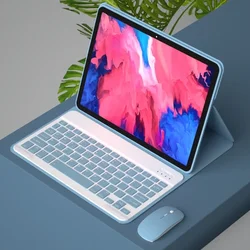
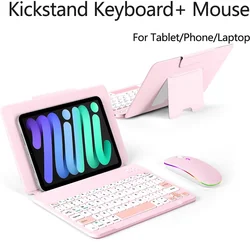
🧩 Enhance your productivity and protection with our specially designed case for the Xiaomi Pad 7 and 8, featuring a sleek and sophisticated 11.2-inch design. This versatile case not only safeguards your tablet against everyday wear and tear but also integrates seamlessly with a wireless Bluetooth keyboard, allowing for effortless typing and navigation.
🔧 Key Features:
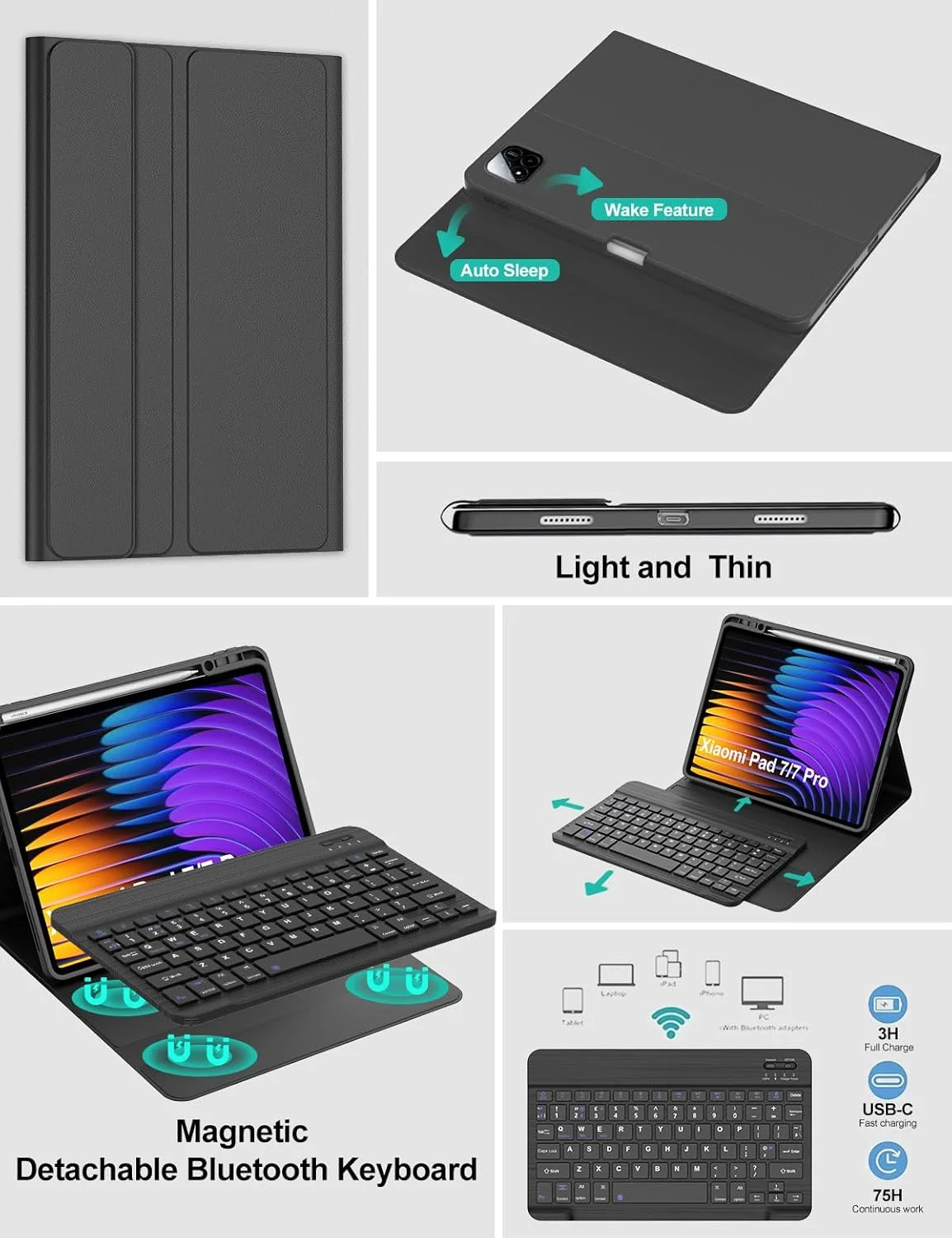
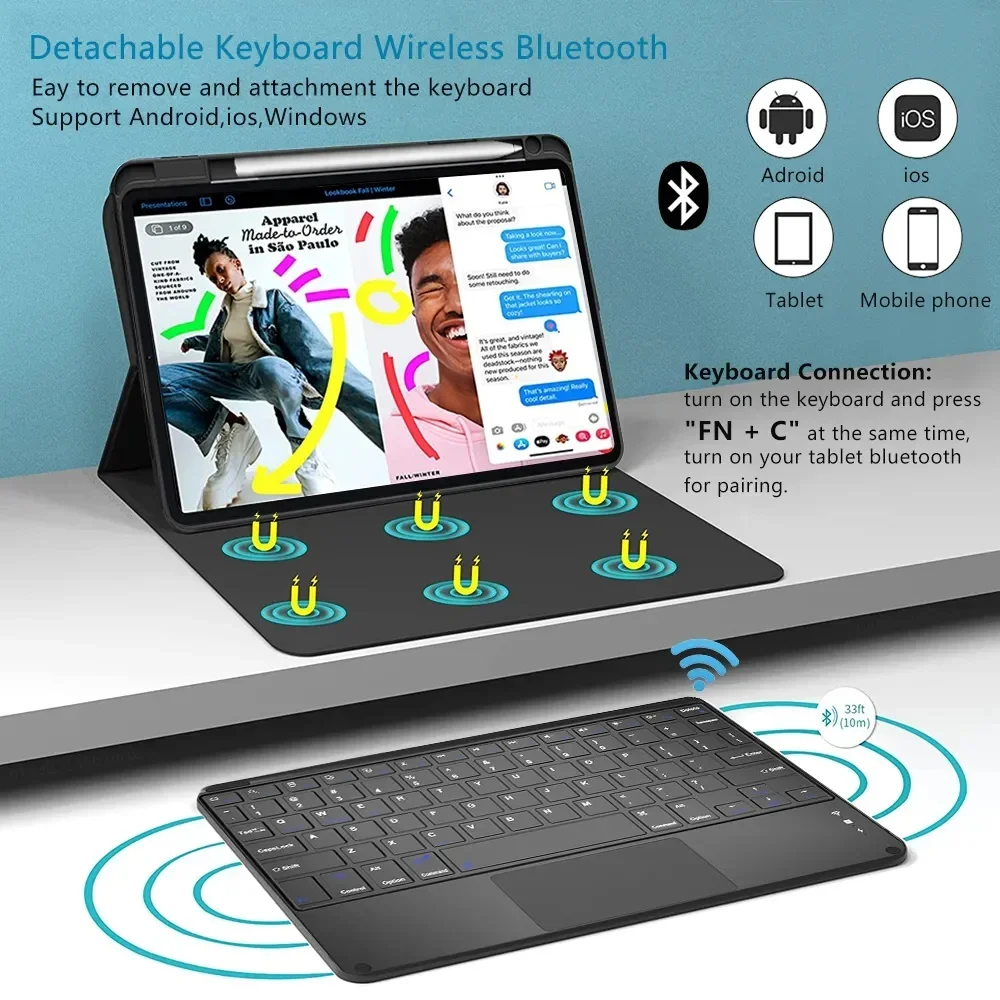
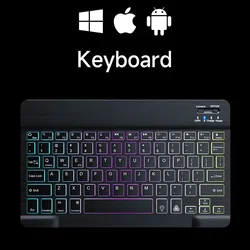
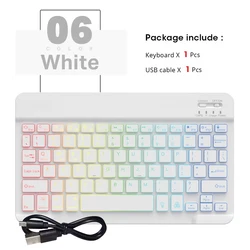
- Removable Wireless Keyboard: The included Bluetooth keyboard is not only removable but also designed to provide a comfortable typing experience, making it perfect for both work and play.
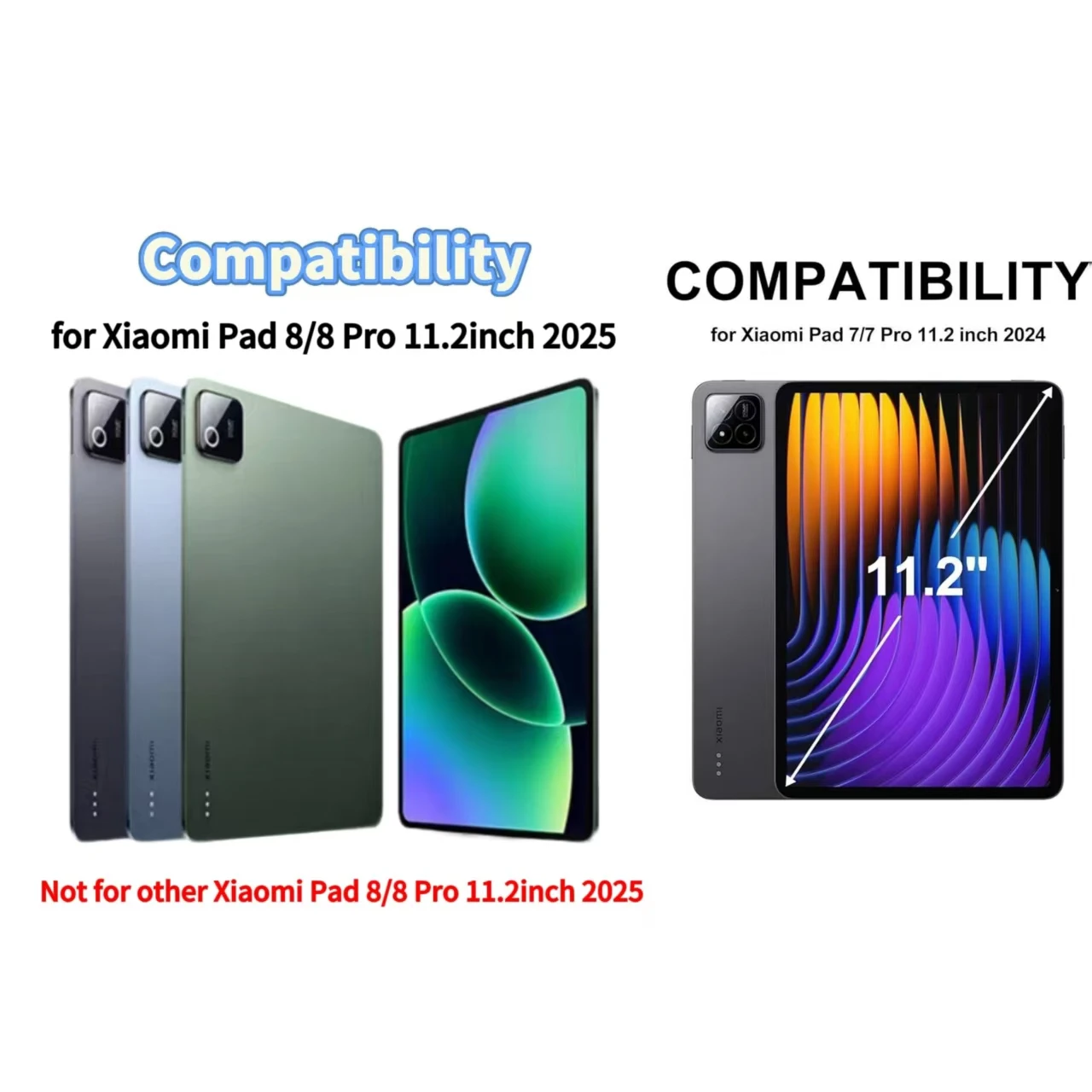
- Custom Fit: This case is tailored specifically for the Xiaomi Pad 7/8 and 7/8 Pro models, ensuring a snug fit and easy access to all ports, buttons, and features.
- Lightweight and Portable: Weighing in at a minimal amount, this case is perfect for on-the-go users, providing protection without adding extra bulk.
- Stylish Design: With a modern look and feel, this case adds an aesthetic appeal to your device, making it suitable for both professional and casual environments.
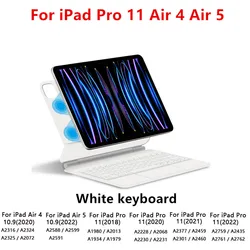
🕊️ How to Verify Your Tablet Model:
To ensure you select the correct case, follow these simple steps:
- Check the back of your tablet for the specific model number.
- Navigate to "Settings", click on "About", and locate the "Model" section.
💍 Please note: The tablet and stylus are not included with the case, and the product color is best confirmed by referring to the actual item.
Connecting Your Keyboard and Mouse:
Getting started with your keyboard and mouse is straightforward:
- First, connect the mouse by toggling the switch to the "Bluetooth" icon and locating it in your device's Bluetooth settings.
- Next, turn on the keyboard by flipping the switch to "ON", pressing "Connect", and finding it in your Bluetooth list.
- If your keyboard features a touchpad, simply open it, hold Fn+C to activate its Bluetooth mode, then connect as described.
🤲 Frequently Asked Questions:
🧰 If you have questions while setting up your device, here are some answers:
- First-time Mouse Connection: Hold down the left button, right button, and scroll wheel simultaneously for 3-5 seconds to initiate pairing.
- Scroll Direction Differences: Note that the scroll direction may differ between USB and Bluetooth connections.
- Switching Operating Systems: Use Fn+Q for Android, Fn+W for Windows, and Fn+E for iOS. Remember to switch systems before connecting.
- Keyboard Layout Issues: If keyboard letters appear scrambled, verify your device's keyboard language settings and reconnect.
- Configuring Input Methods: To set up a different language keyboard, navigate to "Settings" -> "System" -> "Language & input" on your device.
- Adjusting Mouse Scroll Direction: After connecting your mouse, modify the scroll settings in the "General" menu under "Trackpad & Mouse" by disabling "Natural Scrolling".
💎 Elevate your Xiaomi Pad experience with this premium case and wireless Bluetooth keyboard combination, designed for those who appreciate both style and functionality!