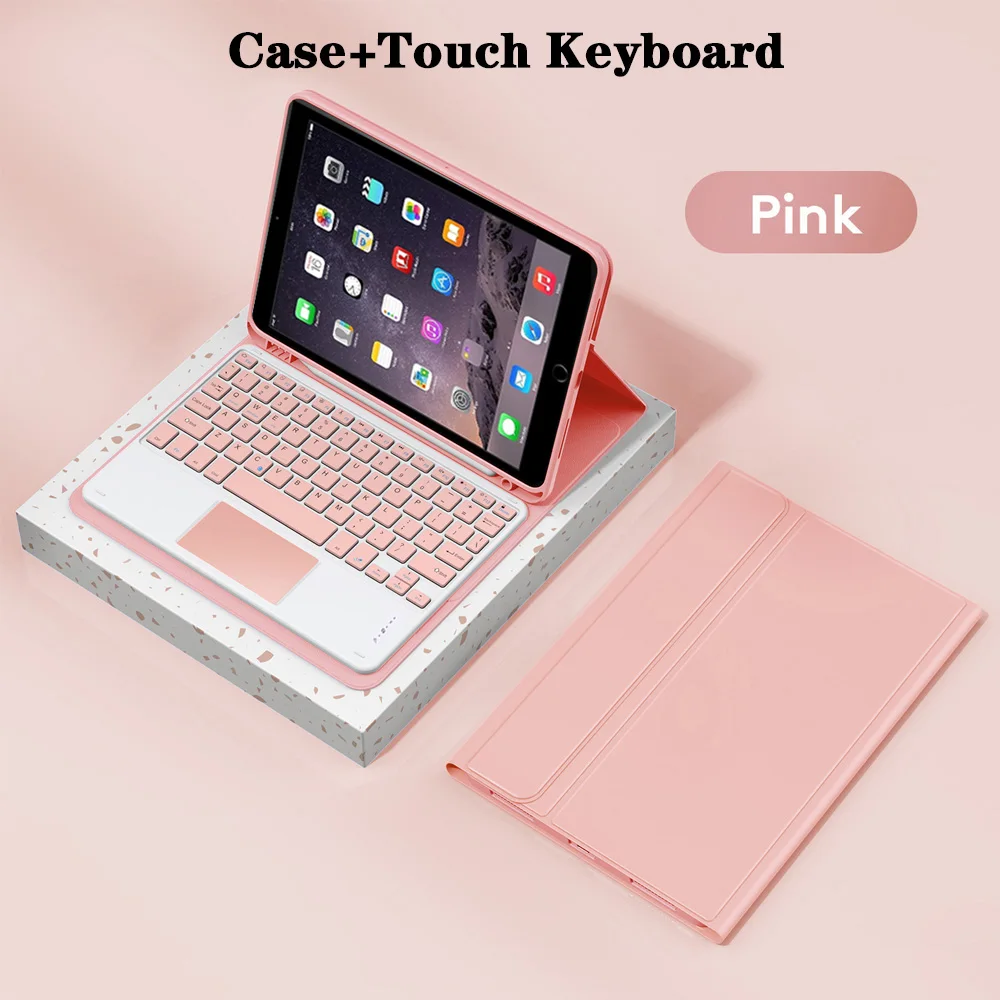
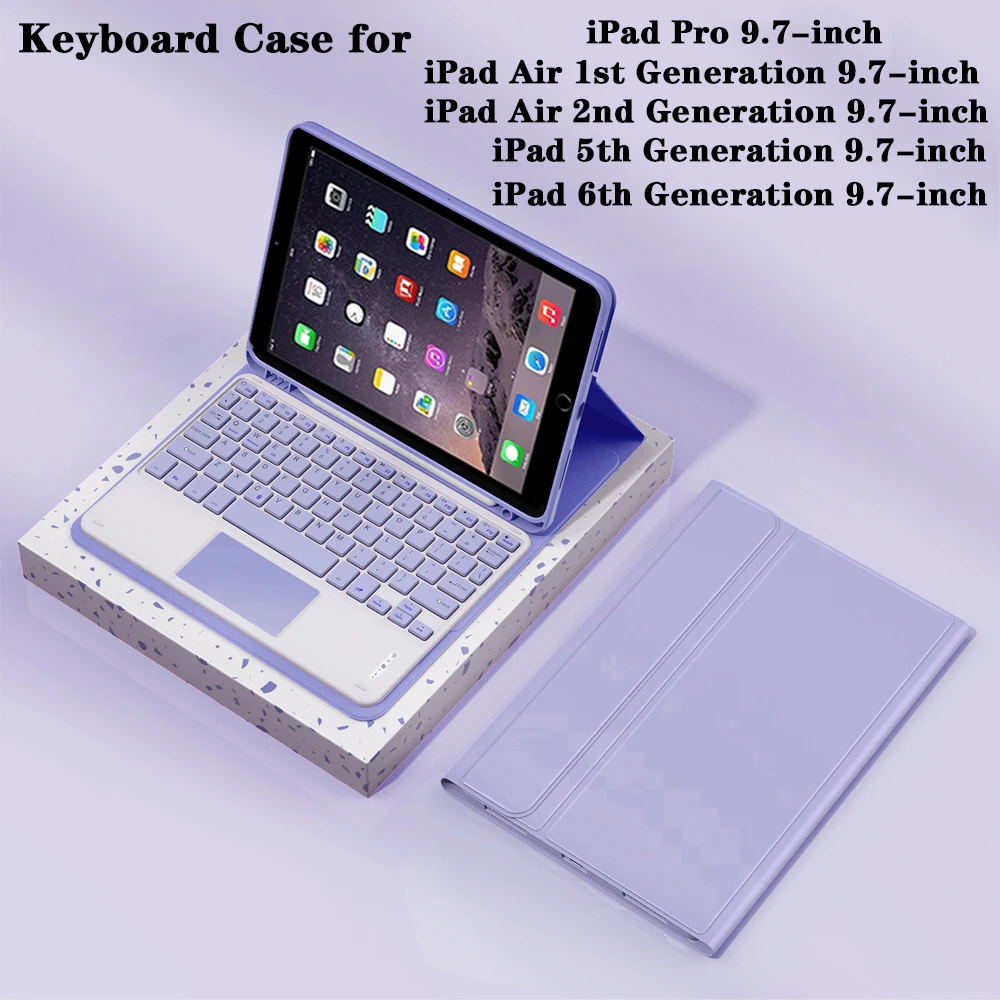
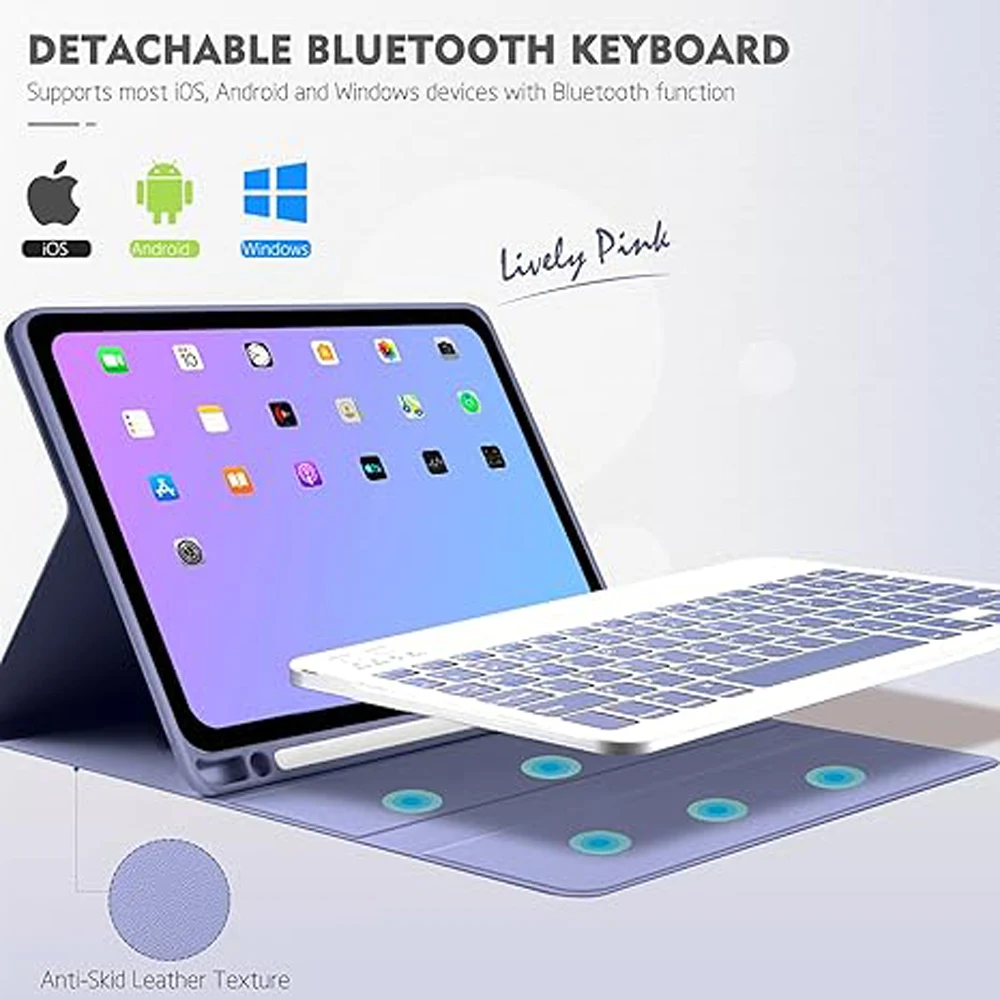
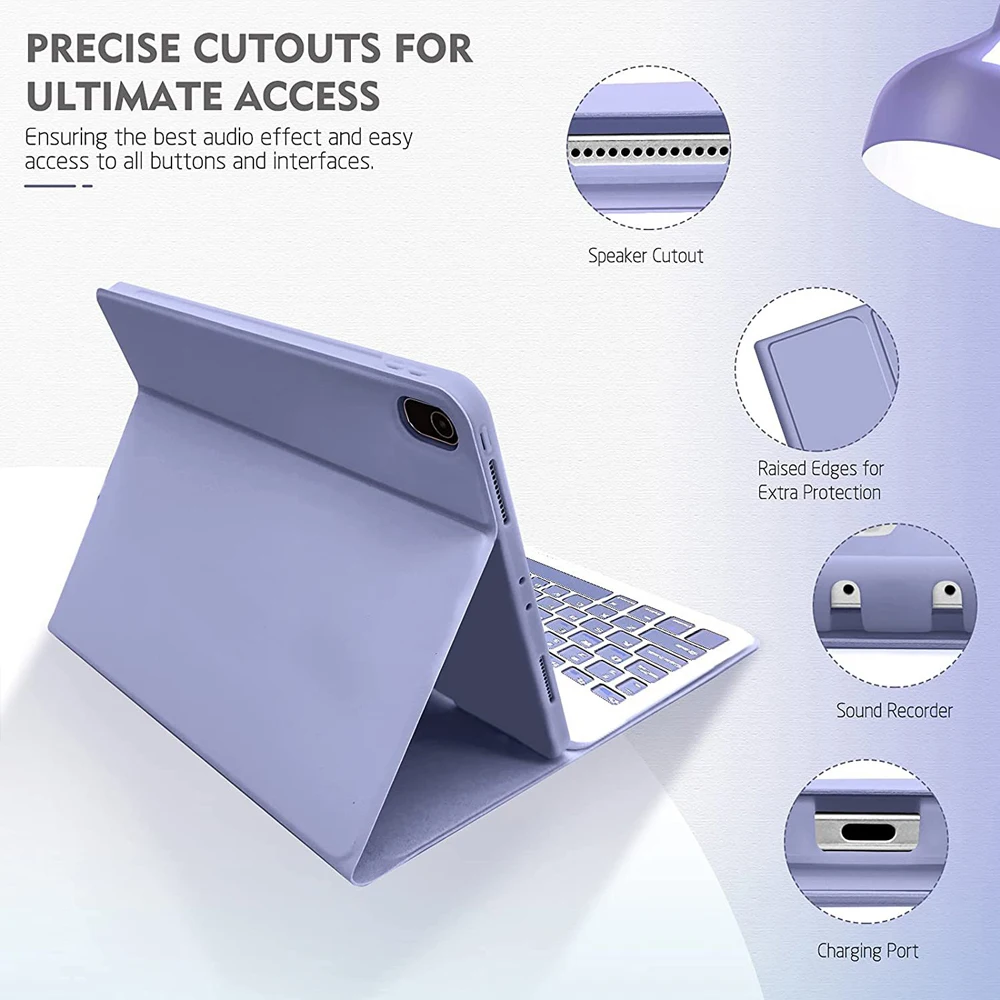
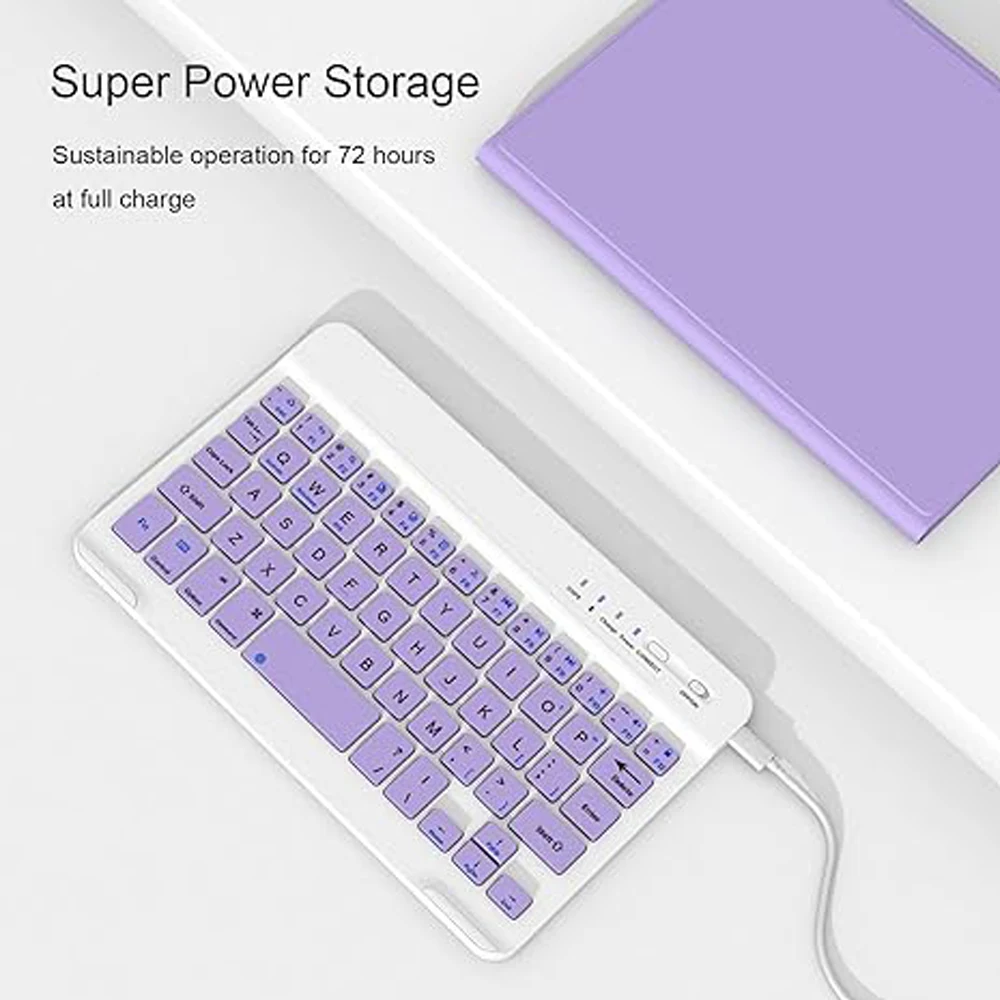
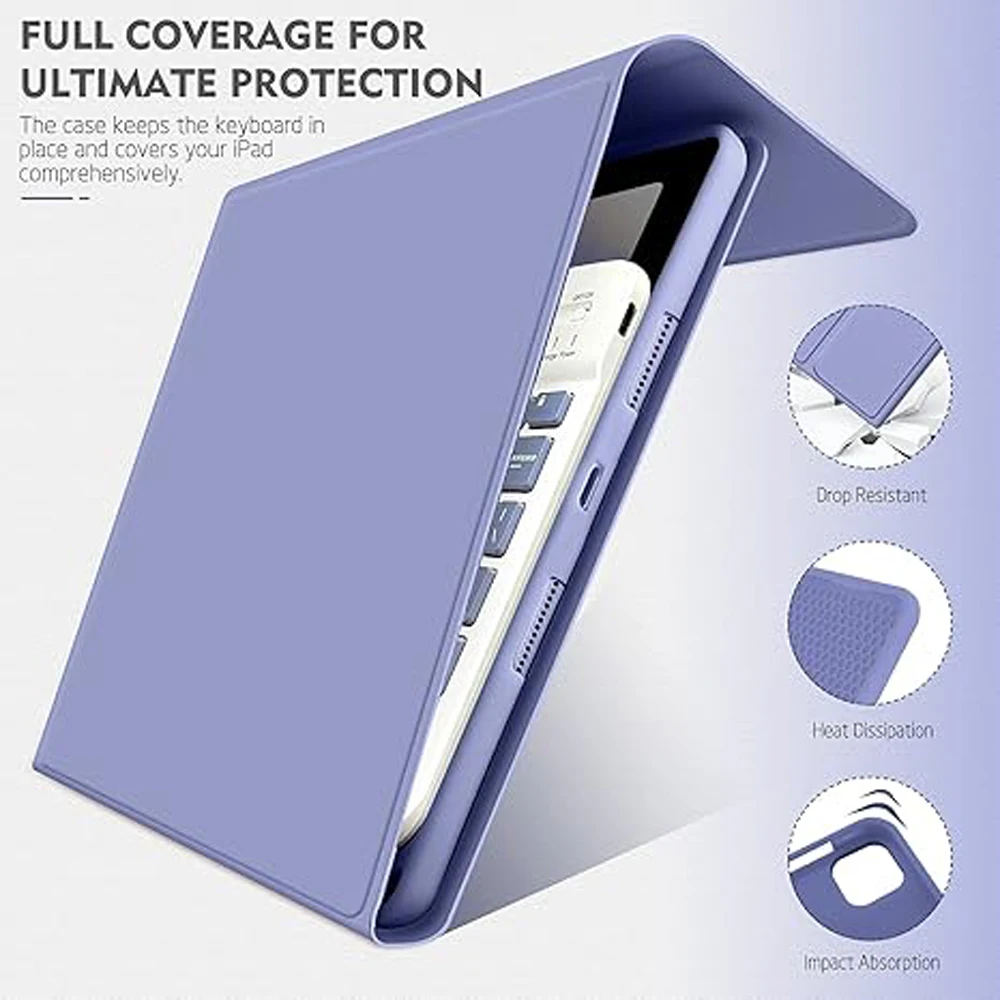
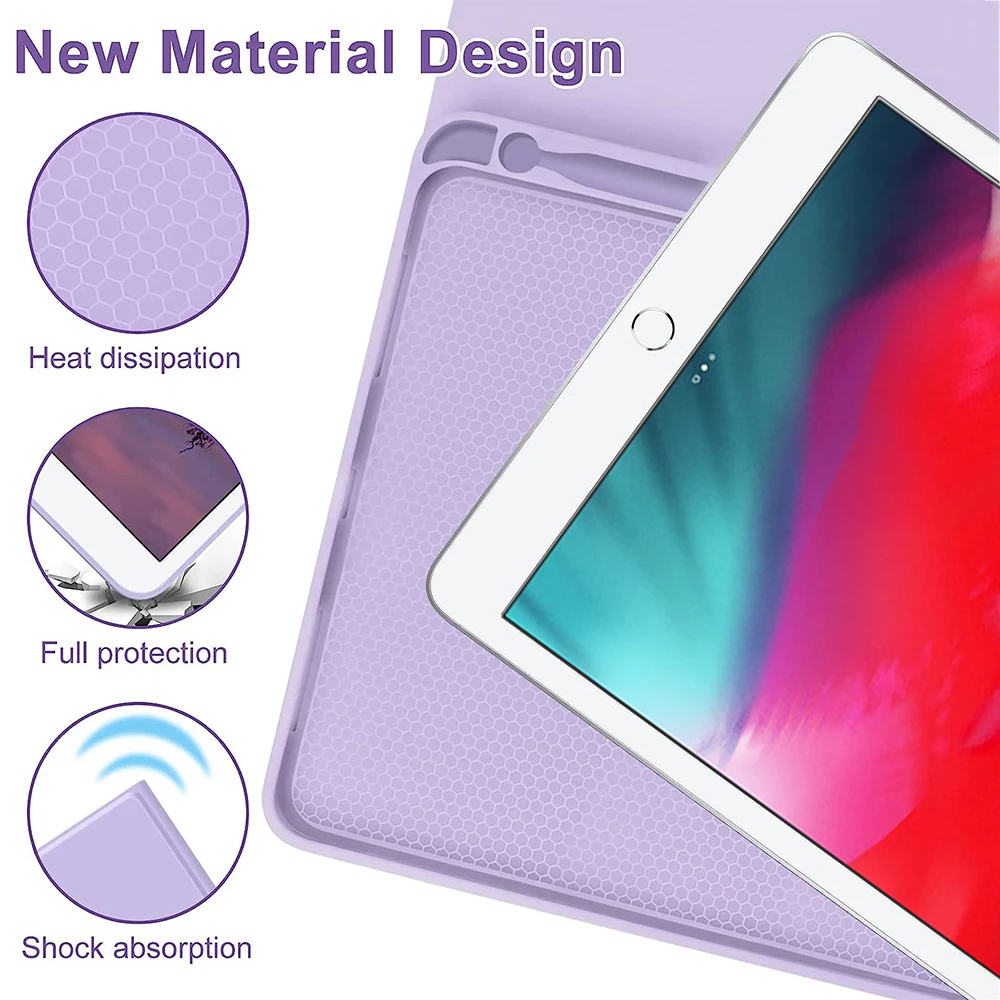
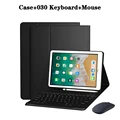
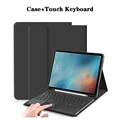
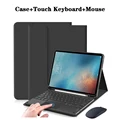
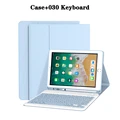
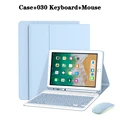
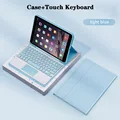
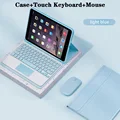
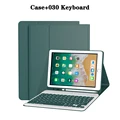
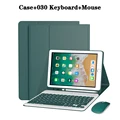
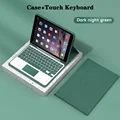
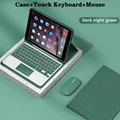
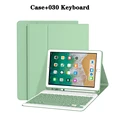
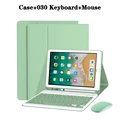
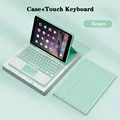
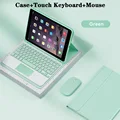
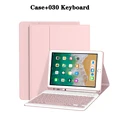
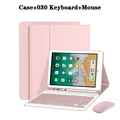
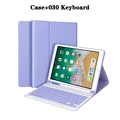
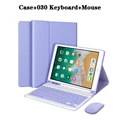
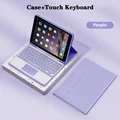
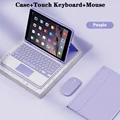
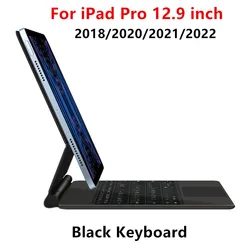
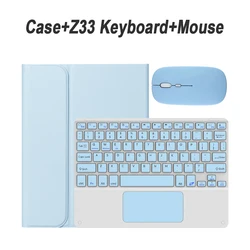
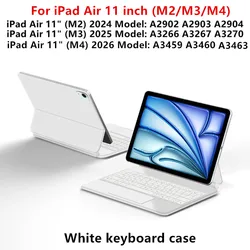
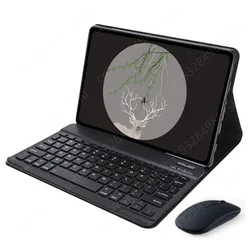
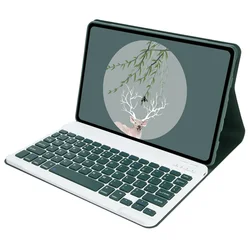
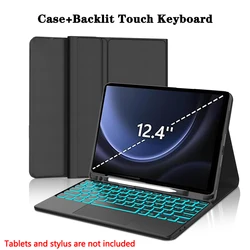
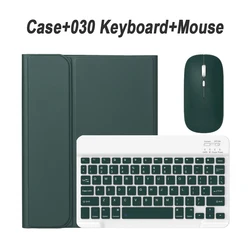
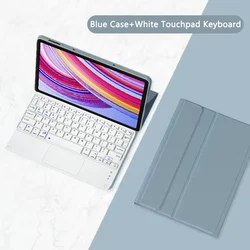
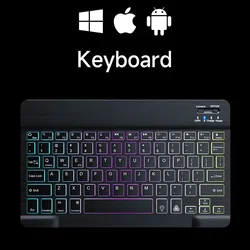
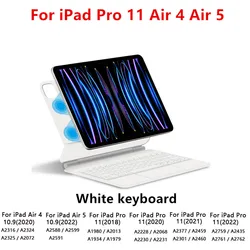
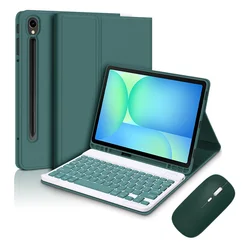
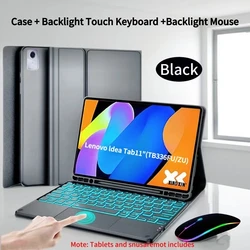
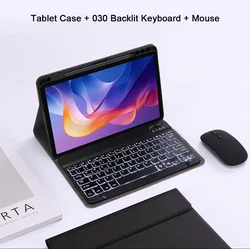
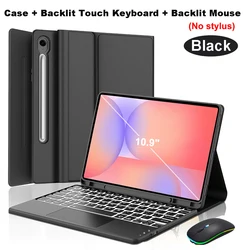
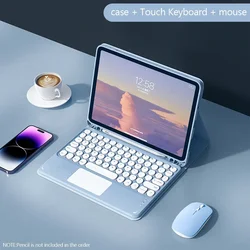
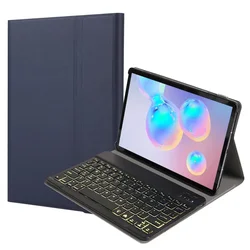
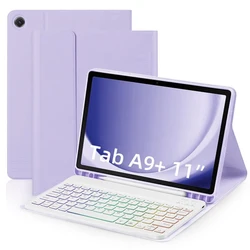
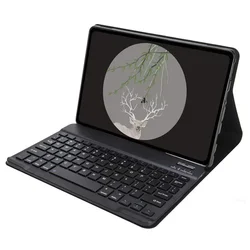
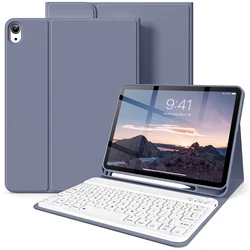
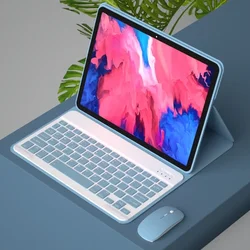
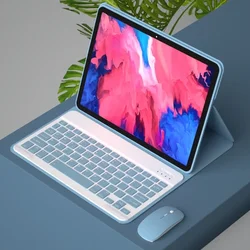
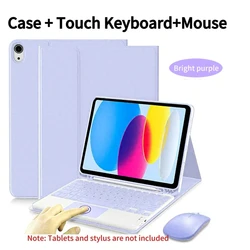
🧩 Overview: Introducing a versatile Tablet Case designed specifically for the iPad 9.7-inch models, including the iPad Air 1st & 2nd Generations, iPad Pro 9.7-inch, and the iPad 5th & 6th Generations. This case seamlessly blends functionality with style, offering a protective shell that safeguards your device while providing added usability through its detachable keyboard. The case also features a dedicated pencil holder, ensuring you keep your stylus handy for notes or creative tasks.
🎯 Compatibility: This tablet case is meticulously crafted to fit the following models:
- iPad Air 1st Generation (9.7-inch, 2013) - Model: A1474/A1475/A1476
- iPad Air 2nd Generation (9.7-inch, 2014) - Model: A1566/A1567
- iPad Pro (9.7-inch, 2016) - Model: A1673/A1674/A1675
- iPad (5th Generation, 9.7-inch, 2017) - Model: A1822/A1823
- iPad (6th Generation, 9.7-inch, 2018) - Model: A1893/A1954
Identifying Your Model: To ensure compatibility, please verify your iPad model before making a purchase. You can find this information by:
- Looking at the back of your device for the model number.
- Navigating to Settings > About > Model.
💍 Keyboard and Mouse Connectivity: Connect your keyboard and mouse effortlessly with our straightforward pairing instructions:
- Start by connecting your mouse, set it to Bluetooth mode, and select it from your Bluetooth device list.
- Next, activate your keyboard by turning it on and pressing Connect. Find and select the Keyboard from the Bluetooth device list.
- For the touchpad keyboard, open it and press Fn + C before selecting it in your Bluetooth settings.
🔵 Frequently Asked Questions:
- What to consider when connecting the mouse for the first time? Ensure to press the left button, right button, and scroll wheel simultaneously for 3-5 seconds to establish the initial connection.
- Are USB connector and Bluetooth scrolling directions identical? No, they differ. The USB connection scrolls in line with a standard computer mouse, while the Bluetooth connection behaves oppositely.
- How do I switch between operating systems? Use Fn + Q for Android, Fn + W for Windows, and Fn + E for iOS. It’s crucial to switch systems before pairing the tablet.
- My keyboard letters appear jumbled; what should I do? Check your device’s keyboard settings: set the keyboard language to English, disconnect and ignore the current Bluetooth connection, re-establish the connection, and use the appropriate Fn key for your operating system.
- How to configure the input method for different languages? For instance, on Samsung tablets, access Settings > System > Language & input > Add New Keyboard. Follow similar steps on other devices as guided by their system settings.
- How do I change the mouse scroll wheel sliding direction? To adjust, connect your mouse, navigate to General > Trackpad & Mouse in Settings, and disable Natural Scrolling.
🔘 Note: The tablet and stylus are not included, and the description serves as a reference. Always refer to the actual product for exact colors and specifications.