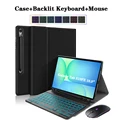
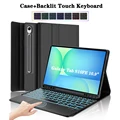
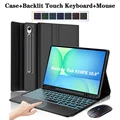
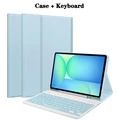
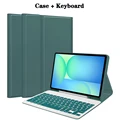
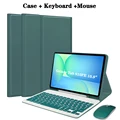
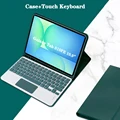
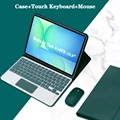
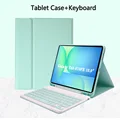
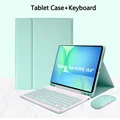
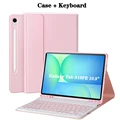
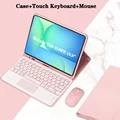
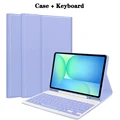
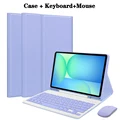
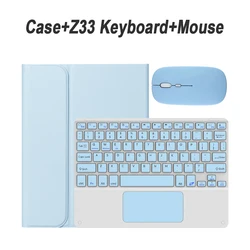
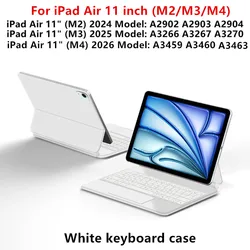
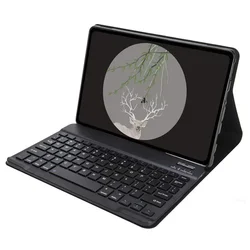
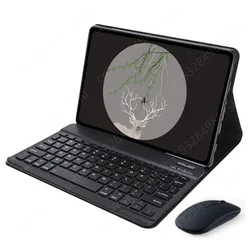
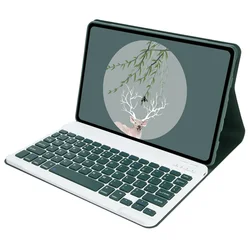
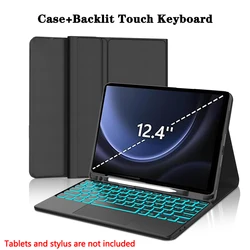
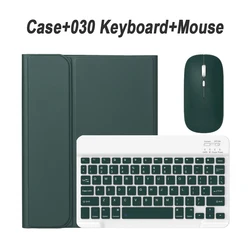
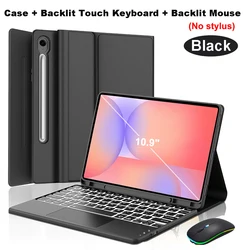
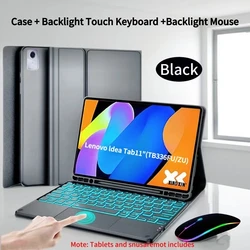
Product Overview:
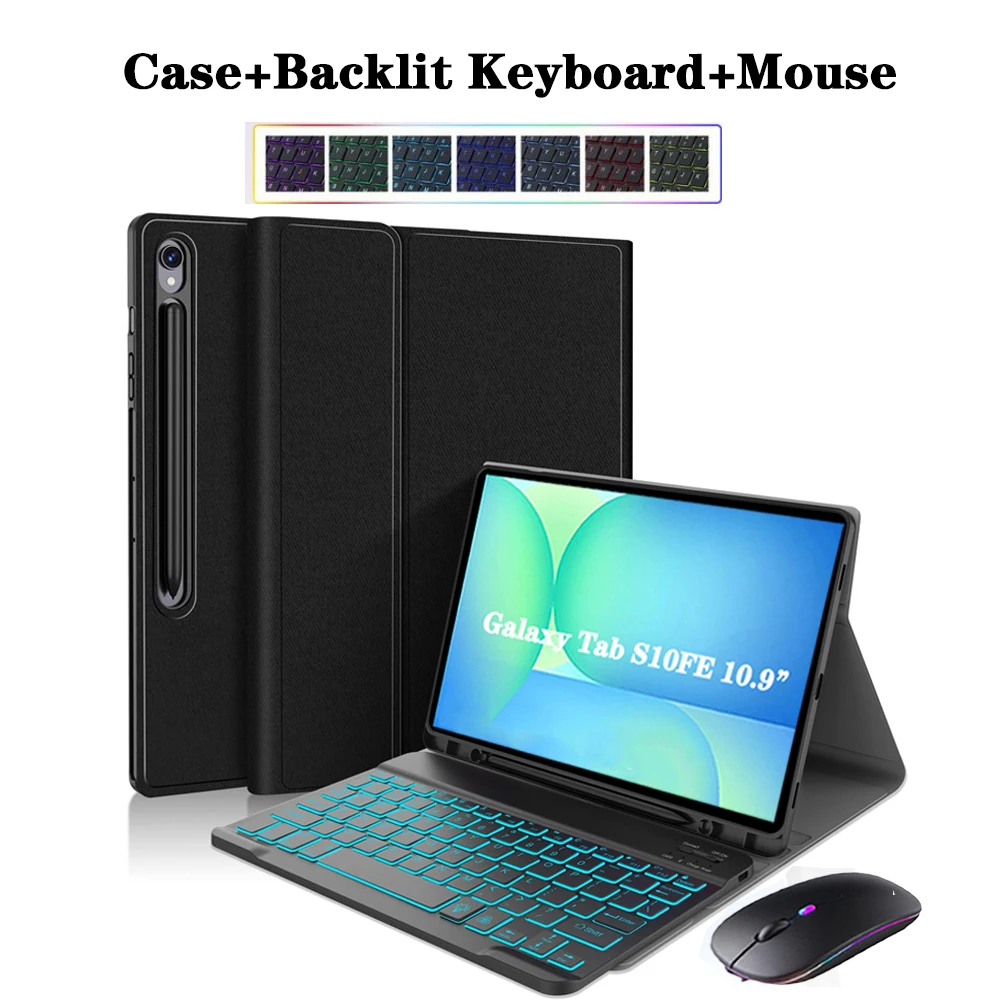
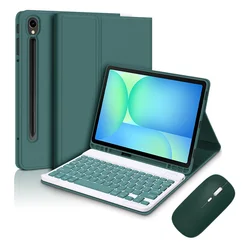
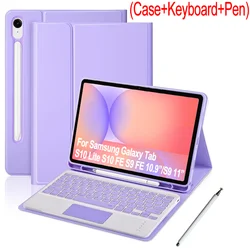
💥 The Samsung Galaxy Tab S10 FE 10.9-inch (2025 Models: SM-X520/X526/X526B) case is designed specifically to seamlessly fit and protect your device while enhancing its functionality. Engineered with precision, this case ensures a snug fit for your tablet, providing comprehensive protection against everyday wear and tear, such as scratches, drops, and dust. Designed especially for the 2025 model, it is essential to confirm your tablet's model number for perfect compatibility.
How to Verify Your Tablet Model:
To ensure that you are purchasing the correct case for your tablet, you can verify your model easily:
- Inspect the back of the tablet for the specific model number.
- Navigate to "Settings" on your device, then click on "About" to find the model info.
🧰 By cross-referencing the model number with this case's compatibility, you can make an informed purchase decision.
Keyboard and Mouse Connectivity:
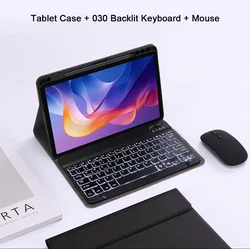
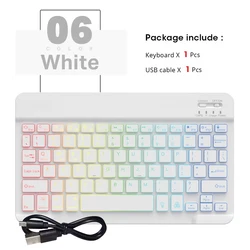
This case also includes a versatile keyboard cover that enhances productivity by allowing you to connect a keyboard and mouse easily. Follow these user-friendly steps to initiate connections:
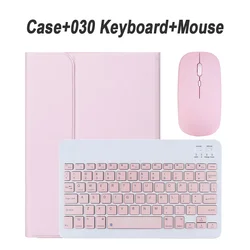
- Begin by connecting the mouse first; ensure the switch is set to the "Bluetooth" icon.
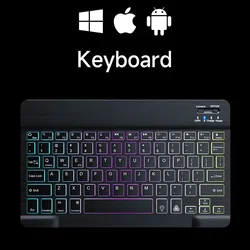
- For the keyboard, switch it on and press the "Connect" button to sync with your device.
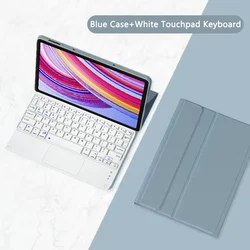
- For touchpad keyboards, simply open the keyboard and press Fn+C, then connect as instructed.
🔘 Frequently Asked Questions:
Here are some common queries about using the keyboard and mouse:
- How should I connect the mouse for the first time? Press and hold the left button, right button, and scroll wheel simultaneously for 3-5 seconds to establish the initial connection.
- Is the scrolling direction the same for USB and Bluetooth? No, they differ. The USB connection scrolls in the same direction as a traditional computer mouse, while the Bluetooth connection is reversed.
- How to switch between operating systems? Use the commands: Fn+Q for Android, Fn+W for Windows, and Fn+E for iOS. Ensure to switch the system before connecting your tablet.
- What if the keyboard letters appear incorrect? Verify the keyboard language settings on your device are set to English, and consider resetting the keyboard by pressing L, S, and Z simultaneously if issues persist.
- How to set up a different keyboard language input method? For Samsung tablets, go to "Settings," select "System," followed by "Language & Input," and then "Add New Keyboard." Adjust settings as necessary for other systems.
- How to adjust mouse scrolling direction on the device? After connecting the mouse, go to "General," then "Trackpad & Mouse," and turn off "Natural Scrolling."
🔘 Please Note: This product does not include the digital tablet or stylus. The details provided herein are for reference only; please refer to the actual product for color and other specific attributes.